Tech Tips
  • Home
  • Learn More
  • Menu Menu
Tech Tips

đŸ§č The 10-Minute Year-End Digital Clean Up

As we head into the final stretch of the school year, energy is low, and to-do lists are long. The good news is you don’t need to spend all day on your computer to get yourself set up digitally for September.   Follow each step below and set yourself up for a smoother school start-up.
10 minutes is all it will take
 😆😆😆😆

Thanks to Copilot for helping me with some of the suggestions . . .

​

​What to Clean Up on Your Computer​ Before You Log Off for Summer 

⏱Step 1: Clean Up Your Desktop (2 minutes) 

Take a quick look at your desktop or main working folders. 

  • Delete duplicate or unnecessary files 
  • Move anything important into clearly labeled folders 
  • Rename a few key files so they actually make sense later 

💡 Use Kara’s Tech Tip from last week to create a “working” and “teaching” desktop

📁 Step 2: Reduce Items in Your Downloads Folder (2 minutes) 

Take a quick look at your downloads folder. 

  • Delete duplicate or unnecessary files 
    • Sort by name so you can quickly see duplicate files 
  • Move anything important into the appropriate folder in your OneDrive 
  • Rename a few key files so they make sense later 

💡 You don’t need perfection—just reduce the clutter in this location. 

đŸ“„Â Step 3: Quick Inbox Reset (2 minutes) 

No need for “Inbox Zero”—just a quick refresh: 

  • Delete or archive obvious old threads 
  • Create a 2025-26 folder to save important emails to visit later 
  • Flag or pin anything important with “action” items > hover over email and click on flag or pin 
  • Unsubscribe from emails you don’t read 

💡 Even a small cleanup can make September feel less overwhelming. 

🔗 Step 4: Fix One Small Frustration (2 minutes) 

Think of one thing this year that made you pause or say, 

“Why is this so hard to find?” 

  • Fix a broken link 
  • Update unclear instructions 
  • Move a resource to a better location 

💡 Small fixes now save repeated frustration later. 

đŸ—‚ïžÂ Step 5: Create a “Start of Year” Folder (1–2 minutes) 

Make a simple folder for September with: 

  • First-day resources 
  • Welcome materials 
  • Key links or templates 
  • School start-up checklist 

💡 You don’t have to fill it now—just create the space. 

💬 Final Thought 

End-of-year is not the time to do everything—it’s the time to do a few small things that make a big difference later. 

Have an amazing year-end.  🎉✹đŸŒș🌞

July 9, 2026/by admin
https://learn71.ca/tech-tips/wp-content/uploads/sites/42/2026/07/Tech-Tips-Logo.png 0 0 admin https://learn71.ca/tech-tips/wp-content/uploads/sites/42/2026/07/Tech-Tips-Logo.png admin2026-07-09 10:55:082026-07-09 10:55:08đŸ§č The 10-Minute Year-End Digital Clean Up
Tech Tips

Turn Cluttered Screen Chaos into Organized Calm with Windows Magic

If your computer currently has 17 different windows open and you’re playing a game of “Where did I put that document?”, this tip is for you (yes, that’s me too).  I just discovered this icon on my computer and I had to share! 

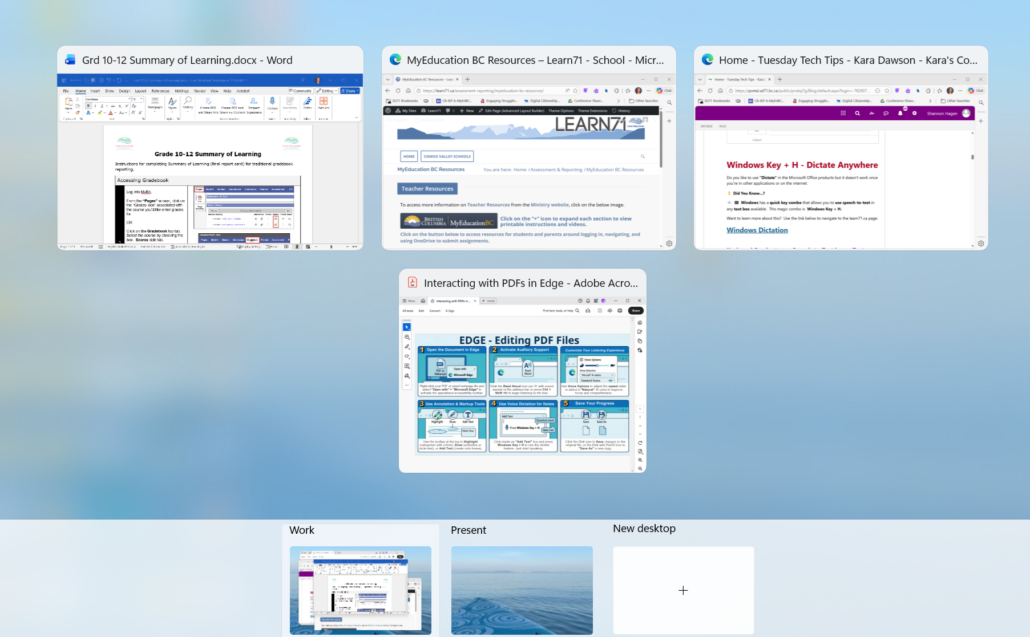
Windows 11 includes a hidden tool called Virtual Desktops, that lets you create separate workspaces for different tasks. Think of it as having multiple desks in your office: one for email, one for planning, and one for meetings ( and one for working on report cards that you can keep hidden in the background).

How to Create a Virtual Desktop

  1. Click the Task View button on your taskbar (the icon beside Search ), or press Windows + Tab.
  2. Click + New Desktop at the bottom of the screen.
  3. Open different apps and windows on each desktop.
  4. Switch between desktops by pressing Windows + Ctrl + Left Arrow or Windows + Ctrl + Right Arrow or click on the Task View button again and select the Desktop you would like to work in.
Why You’ll Love It

Instead of minimizing and reopening windows all day, you simply switch desktops.

✹ Once you start using Virtual Desktops, you’ll wonder how you ever managed with just one. Just be careful that you don’t think that you lost what you were working on and start again (yes-I did that one).

​

​If you have any trouble with this, you have a tech tip ​that you would like to share, or you would like support with technology, please email us. 

July 9, 2026/by admin
https://learn71.ca/tech-tips/wp-content/uploads/sites/42/2026/07/Tech-Tips-Logo.png 0 0 admin https://learn71.ca/tech-tips/wp-content/uploads/sites/42/2026/07/Tech-Tips-Logo.png admin2026-07-09 10:54:462026-07-09 10:54:46Turn Cluttered Screen Chaos into Organized Calm with Windows Magic
Tech Tips

National Accessibility Week and Resources for MyEd Summary of Learning

National Accessibility Week

In honour of National Accessibility Week, we’re highlighting something many people don’t realize:

iPads, iPhones, and Windows devices all include powerful accessibility tools built right into the operating system.

These features can support a wide range of needs—without requiring additional apps or expensive programs.

What’s Available?

Built-in tools can help with reading, writing, vision, hearing, and focus.

Some popular features include:

  • Voice to Text (Dictation) – Speak instead of type
  • High Contrast & Display Settings – Improve visibility and reduce strain
  • Text Size & Formatting – Customize how text appears
  • Screen Readers – Have content read aloud
  • Assistive Touch & Input Supports – Make navigation easier

These tools can be easily customized directly on your device.

Quick Guides

Explore our Learn 71 quick-reference guides to learn more:

Apple (iPad & iPhone)

  • iPad Accessibility Features (iOS 18)
    • iPad Accessibility Features for iOS 18
  • iPad Accessibility Features (iOS 26)
    • iPad Accessibility Features for iOS 26​​​

Windows

  • Windows 10 Accessibility Features​
  • NEW: Learn71 Windows 11 Accessibility Quick Guide – Coming soon!
  • Windows 11 Accessibility Features (Microsoft)

Accessibility is about ensuring everyone can access and engage with technology in ways that work for them. These built-in tools are a great place to start—simple, effective, and already available.​

Summary of Learning Resources

“Final report cards” or a Summary of Learning only occurs once a year so often the process to complete this is forgotten.
Use the links below for resources to help you with this process.  There are a set of instructions for:
  • Elementary Summary of Learning with Comments
  • Elementary Summary of Learning without Comments
  • Grade 8-9 Summary of Learning
  • Grade 10-12 Summary of Learning​

For full MyEducation BC Resources – Learn71 visit the Learn71.ca resource page.​

​If you have any trouble with this, you have a tech tip ​that you would like to share, or you would like support with technology, please email us. 

July 9, 2026/by admin
https://learn71.ca/tech-tips/wp-content/uploads/sites/42/2026/07/Tech-Tips-Logo.png 0 0 admin https://learn71.ca/tech-tips/wp-content/uploads/sites/42/2026/07/Tech-Tips-Logo.png admin2026-07-09 10:53:592026-07-09 10:53:59National Accessibility Week and Resources for MyEd Summary of Learning
Tech Tips

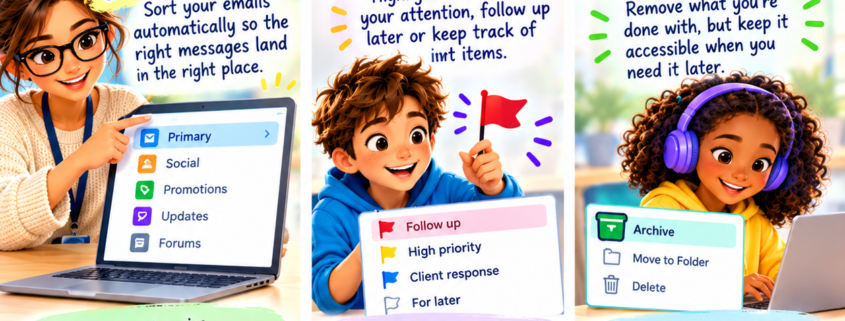
Tame Your Inbox with Categories, Flags & Archives

As we approach June and the weather is beautiful, we sometimes need some quick ideas to regroup our students and shift gears or calm down. Check out Digital Snacks – 150+ Breaks for students’ brains, curated by Tony Vincent​ to find relaxing break videos, sensory break videos and quick activities like “Do nothing for 2 minutes”.
…and on another note…   
If your Outlook inbox feels a bit like a laundry basket full of emails, meetings, reminders, and “I’ll deal with this later” messages
 you’re definitely not alone 😅

Luckily, Outlook has a few simple tools that can make a huge difference without creating complicated folders or systems.


🎹 Use Categories to Organize Visually

Categories let you add colour labels to emails so you can quickly spot important messages.

You could create categories like:

  • đŸ”” Staff
  • 🟱 Parents
  • 🟣 Tech Tips 😉
  • 🟠 Urgent
  • 🟡 To Read Later

👉 Right-click an email → Categorize → choose a colour or click on New category and set one up.

đŸš© Flag Emails You Need to Return To

Instead of leaving emails unread forever, try using Flags.

Click the little đŸš© beside an email to mark it as something you need to follow up on later.

This works great for:

  • emails you don’t want to forget to read later
  • people to reply to
  • tasks you can’t do immediately
You can even sort your email to show just all the flagged ones:
Even spending just 2 minutes at the end of the day categorizing, flagging, or archiving can make Outlook feel much calmer and easier to manage.
July 9, 2026/by admin
https://learn71.ca/tech-tips/wp-content/uploads/sites/42/2026/07/Tech-Tips-Logo.png 0 0 admin https://learn71.ca/tech-tips/wp-content/uploads/sites/42/2026/07/Tech-Tips-Logo.png admin2026-07-09 10:53:332026-07-09 10:53:33Tame Your Inbox with Categories, Flags & Archives
Tech Tips

Work Smarter with PDFs, Fast App Access & Healthier Tech Habit Challenge

Interacting with PDFs

One of the most frequently asked question we get is how can students interact with PDFs that are provided to them by the teacher.  With the right tools, students can listen, highlight, write on them, annotate on them and even use dictate tools for speech to text. 

Our district supports two tools: ​

  • OrbitNote (browser extension)
  • Microsoft Edge (built-in) ​

ORBITNOTE:  👉 OrbitNote is designed specifically to make PDFs accessible, interactive, and student-friendly. 

With OrbitNote students can:

  • 🔊 Listen to text (it reads aloud and highlights words)
  • ✏ Highlight and add notes
  • đŸ–ŠïžÂ Draw, write or type on the page
  • đŸŽ€Â Leave voice comments
  • 🌍 Translate and define words
  • đŸ§Ÿ Collect Vocab / Highlighted Lists
  • đŸ’» Convert Non-accessible PDFs using OCR function
 
For more information and how to access OrbitNote use the link below:
OrbitNote for SD71
 
MICROSOFT EDGE:  👉 Microsoft Edge is a browser that already includes powerful PDF tools—no extra installation needed.  
With Edge, students can:​
  • đŸ–±ïžRight click any PDF and “Open with” > Edge
  • 🔊 Read aloud (listen to the text) 
  • ✏ Highlight important parts ​
  • đŸ–ŠïžÂ Draw, write or type on the​ page​
  • 📄 Fill out worksheets and save them ​
For more information on using Edge to interact with PDFs use the link below:
Edge Browser for SD71
This will open a new window displaying all of your open apps.  Clicking on the app will open it in the active screen.

This is perfect when you are presenting and would like to demo an app in another window.  You don’t have to minimize or close the current app to access the other.

July 9, 2026/by admin
https://learn71.ca/tech-tips/wp-content/uploads/sites/42/2026/07/Tech-Tips-Logo.png 0 0 admin https://learn71.ca/tech-tips/wp-content/uploads/sites/42/2026/07/Tech-Tips-Logo.png admin2026-07-09 10:52:062026-07-09 10:52:06Work Smarter with PDFs, Fast App Access & Healthier Tech Habit Challenge
Tech Tips

Clean Up Your Email Autocomplete & Dictate Anywhere with Windows + H

Deleting Autocomplete Email Addresses

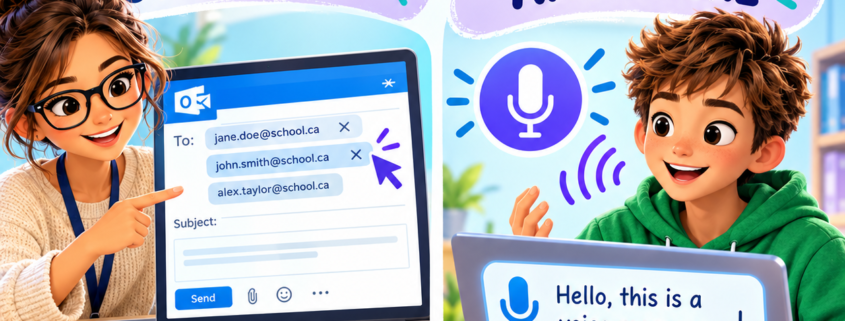
Have you ever noticed that Outlook sometimes automatically finds and completes email addresses for you?  This is great if the email addresses are correct or relevant, but as we accumulate email addresses throughout the year, we often have “suggested” emails we no longer want.  Sometimes we even accidentally click on those emails and either have an email sent to the incorrect address OR not sent at all.  

Good news, these can easily be deleted.  It is as easy as clicking the “X” next to the recipient’s name when the mouse is hovered over it.  This will prevent the recipient’s name from showing up at the top of your list and you accidentally clicking it.

Windows Key + H – Dictate Anywhere

Do you like to use “Dictate” in the Microsoft Office products but it doesn’t work once you’re in other applications or on the internet.

💡 Did You Know
?

🔉  ⌹​  Windows has a quick key combo that allows you to use speech-to-text in any text box available.  This magic combo is  Windows Key + H.  

Want to learn more about this?  Use the link below to navigate to the learn71.ca page.

Windows Dictation​

Keyboard Combo to use Speech-to-Text in any Text Box> Windows Key + Letter H

July 9, 2026/by admin
https://learn71.ca/tech-tips/wp-content/uploads/sites/42/2026/07/Tech-Tips-Logo.png 0 0 admin https://learn71.ca/tech-tips/wp-content/uploads/sites/42/2026/07/Tech-Tips-Logo.png admin2026-07-09 10:50:222026-07-09 10:50:22Clean Up Your Email Autocomplete & Dictate Anywhere with Windows + H
Tech Tips

Welcome Windows 11 and Study and Learn

If your work  computer looks a little different lately, it has probably been updated to Windows 11. This brings a fresh look and a few helpful new features (but yes, the first thing I did was move the Task Bar at the bottom back to the left).  Another new update-we have the opportunity to test Microsoft Copilot’s “Study & Learn” for students 13+, designed to support student understanding and practice in new ways. Here’s a quick overview to help you get comfortable with what’s new and what’s coming next
​ Oh, and if you are interested in bringing your class to see this year’s Code Quest Arcade at Lake Trail on May 13th let me know 😊

Here are some of the Windows 11 Changes:

📍 Start Menu is in the Center

Your Start button and apps may now be centered on the taskbar instead of the left.

👉 Want it back on the left like me?

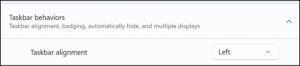
Right-click the taskbar → click on Taskbar settings → ​then bar Behaviors →Taskbar alignment → Left​ 

Easier Window Snapping

Windows 11 makes it easier to organize your screen.
How to try it:
  1. Hover over the maximize button on any window
  2. Choose a layout (side‑by‑side, grid, etc.)
  3. Click where you want the window to snap

Great for working with email + documents at the same time!​

 File Explorer Has a New Look

Your files are all still there—just with updated visuals.

  • New icons
  • Simplified top menu
  • Right-click menu is shorter
    Click “Show more options” for the full version​
July 9, 2026/by admin
https://learn71.ca/tech-tips/wp-content/uploads/sites/42/2026/07/Tech-Tips-Logo.png 0 0 admin https://learn71.ca/tech-tips/wp-content/uploads/sites/42/2026/07/Tech-Tips-Logo.png admin2026-07-09 10:48:382026-07-09 10:48:38Welcome Windows 11 and Study and Learn
Tech Tips

Canva’s Built‑In Accessibility Tools & Windows Key + V

Canva’s Built‑In Accessibility Tools

Are you a power user of Canva, just like me, but worried about creating inclusive and accessible content?  Well, worry no more . . .

💡 Did You Know
?

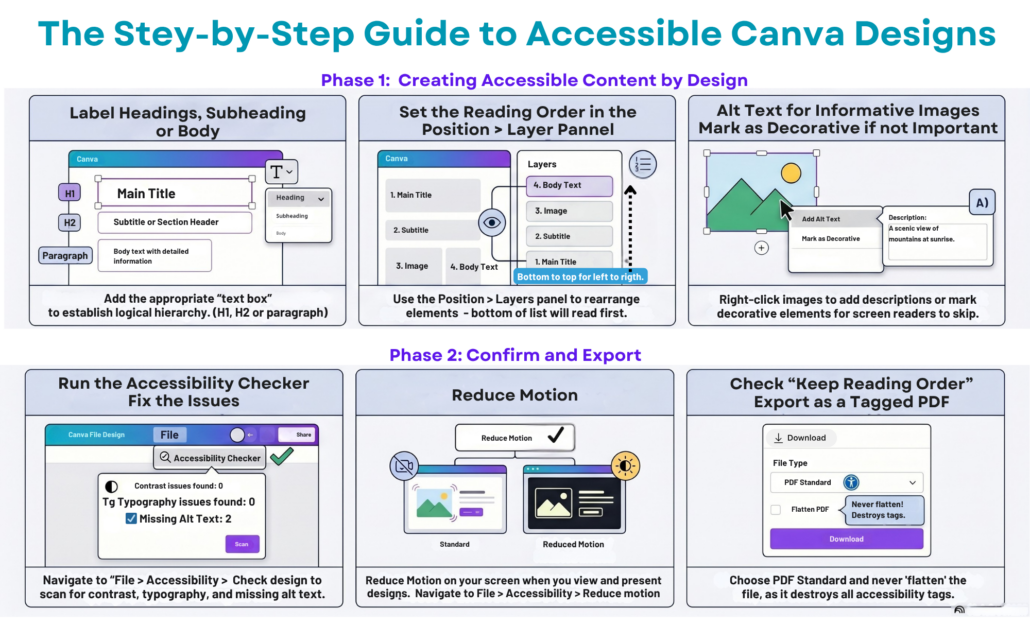
Canva has built‑in accessibility tools?

You can:

  • ïžđŸ–Œïž Add alt text to images for screen readers
  • 🎹 Check colour contrast so text is easier to read
  • 🔠 Choose clear, readable fonts for all learners
  • 🔍 Use the Accessibility Checker to catch issues before sharing
  • 💬 Use the Position > Layers option to manually order text so the reading order is correct for text-to-speech and screen readers
  • đŸ’„AND so much more

Small tweaks in Canva can make a big difference for student understanding—and they only take a minute or two!

Click on the image below for a downloadable format or the link for a text-based copy of the Accessibility Tools in Canva.

​​Canva’s Built-In Accessibility Features

CTRL + V With “Memory” 

Have you ever copied something on your computer with the intent to paste it somewhere else, then got distracted and did another task, losing the original “CTRL + C”?

💡 Did You Know
?

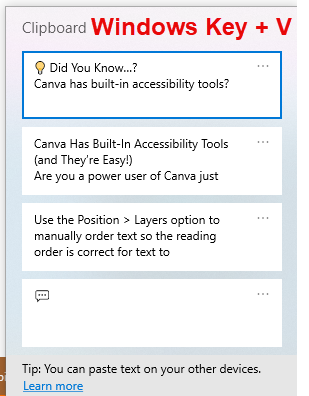
🧠 Windows has a “memory” of the items you’ve copied to the “clipboard,” which you can access with the keyboard combo Windows Key + V. It displays a list of the items you’ve copied and lets you choose a specific item to paste.

July 9, 2026/by admin
https://learn71.ca/tech-tips/wp-content/uploads/sites/42/2026/07/Tech-Tips-Logo.png 0 0 admin https://learn71.ca/tech-tips/wp-content/uploads/sites/42/2026/07/Tech-Tips-Logo.png admin2026-07-09 10:46:172026-07-09 10:46:17Canva’s Built‑In Accessibility Tools & Windows Key + V
Tech Tips

đŸ’„đŸ’„New Inclusive Ed Tech HandbookđŸ’„đŸ’„ (& Locking Your Computer Screen)

Welcome back everyone.  Hope you all had a relaxing and restorative spring break.

​Inclusive Ed Technology Handbook​

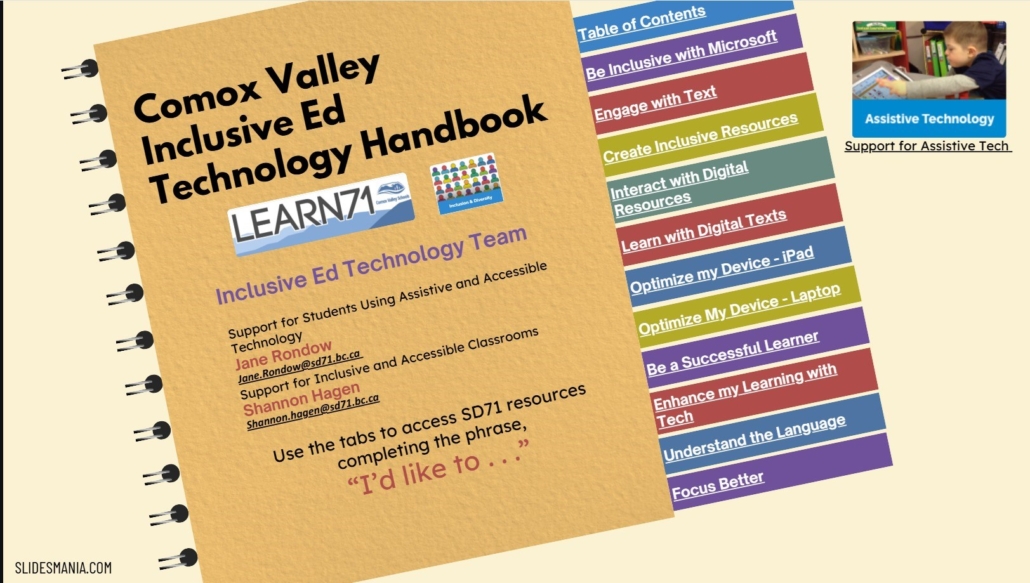
Today’s Tech Tip highlights something that has been a true work in progress for over a year! In addition to the Teacher Technology Handbook and the Parent Technology Handbook, we’re excited to introduce the Inclusive Ed Technology Handbook, created by Jane Rondow and Shannon Hagen.

This handbook is packed with amazing links and supports designed to help ensure all learners can be successful in the learning environment. Even if you’re not sure which specific resource or tool you’re looking for, the handbook is designed to make it easy—just complete the phrase “I’d like to
” with your Inclusive Ed goal in mind and click on the tab on the right to navigate to the resources.

The handbook is organized by content rather than tools, with clickable tabs that take you directly to what you need. Each section includes a variety of resources (including videos and print resources), links, and tools related to that area of support, making it quick and intuitive to explore.

If you would like to explore any of these tools or resources further, don’t hesitate to reach out to Jane Rondow or Shannon Hagen.

​​Click on the image below to access the page housing the Handbook (scroll down . . .)


Quick Way to Lock Computer Screen

The next item in today’s tech tip is a simple keyboard combination that allows you to quickly lock your computer screen before you walk away from it.  With the increase in awareness in the importance of privacy & security, this is an easy way to ensure nobody but you has access to the information on your computer.

Keyboard Combo to Lock Screen > Windows Key + Letter L​

July 9, 2026/by admin
https://learn71.ca/tech-tips/wp-content/uploads/sites/42/2026/07/Tech-Tips-Logo.png 0 0 admin https://learn71.ca/tech-tips/wp-content/uploads/sites/42/2026/07/Tech-Tips-Logo.png admin2026-07-09 10:42:112026-07-09 10:42:11đŸ’„đŸ’„New Inclusive Ed Tech HandbookđŸ’„đŸ’„ (& Locking Your Computer Screen)
Tech Tips

Let Copilot in Outlook do the Heavy Lifting

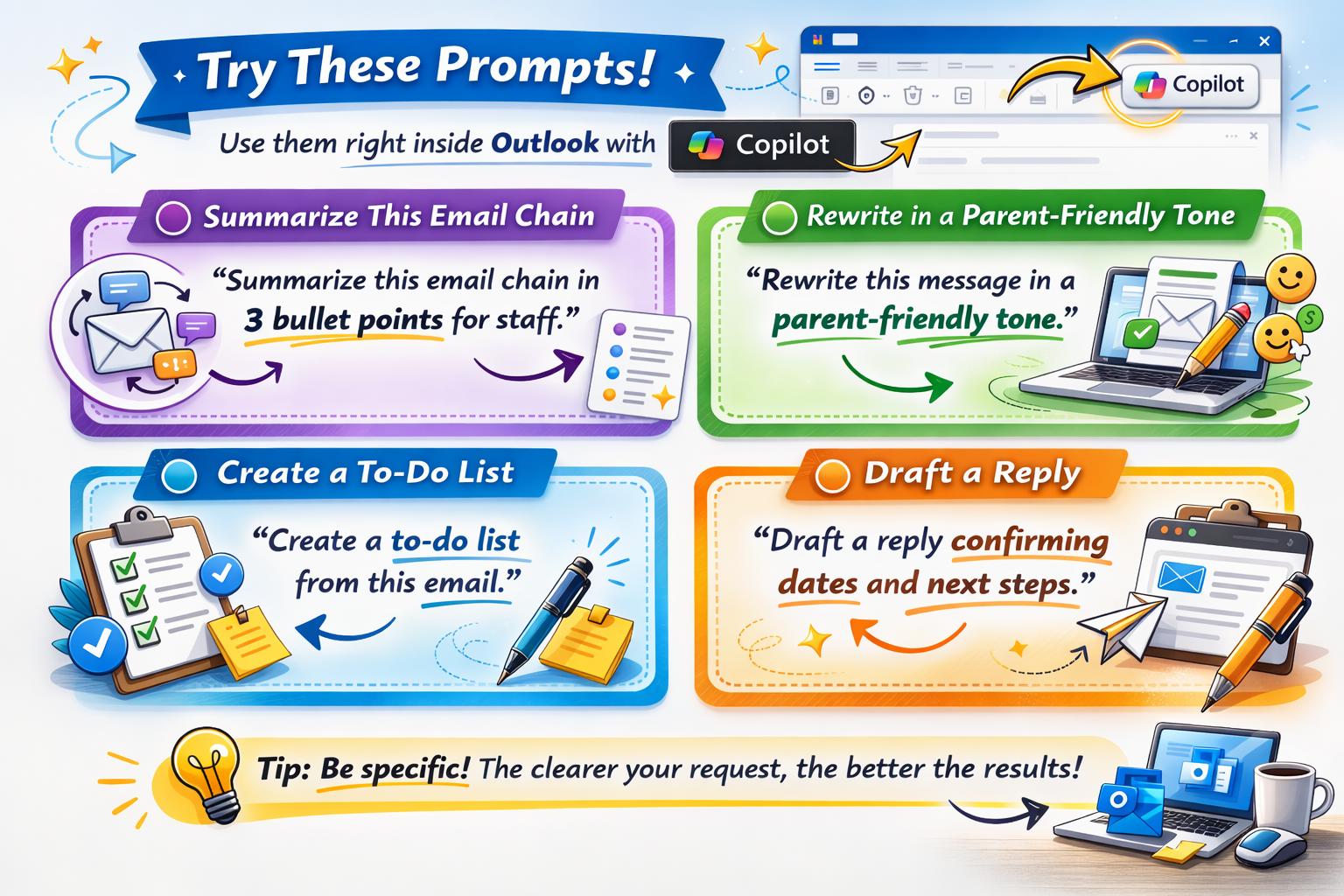
We’re all counting down to Spring Break, and whether you’re flying off to a sunny beach or simply catching up on your sleep and exploring the beautiful Comox Valley we are wishing you the best.  This Tech Tip is to help you catch up on all those emails that will be waiting when we get back. I am going to let Copilot in Outlook do the heavy lifting for me now that it is built in to Outlook and I want to share my tricks with you.  With a couple of clicks, Copilot can summarize your unread emails, help draft replies and help make that pile seem less overwhelming.  Please remember to read everything over before you send it and stick with the 80-20 rule – make sure at least 20% of it is your personal touch. Please avoid using it if you know the email contains personal information about individual students.

​How to Use Copilot in Outlook:

1.  Find the Copilot button in the top right of Outlook:​​

2.  Click on the email that you would like to work on to select it.

3.  Ask Copilot to help with your work. Here are some ideas:

  • ​summarize this email thread
  • draft a reply
  • change the tone of the reply you are working on
  • Find important dates in an email
  • organize the information
  • make a to do list
  • ask copilot to summarize your unread emails (I can select more than one in my Desktop Outlook by pressing CTRL and holding it down while I click on the messages-I can’t seem to get it to work in the online version-let me know if you figure it out.)

July 9, 2026/by admin
https://learn71.ca/tech-tips/wp-content/uploads/sites/42/2026/07/Tech-Tips-Logo.png 0 0 admin https://learn71.ca/tech-tips/wp-content/uploads/sites/42/2026/07/Tech-Tips-Logo.png admin2026-07-09 10:40:562026-07-09 10:40:56Let Copilot in Outlook do the Heavy Lifting
Page 1 of 7123›»

Archive

  • July 2026
  • August 2024

Categories

  • Tech Tips

Facebook

Instagram

No images available at the moment

Follow Me!

Footer

Footer 2

Scroll to top Scroll to top Scroll to top