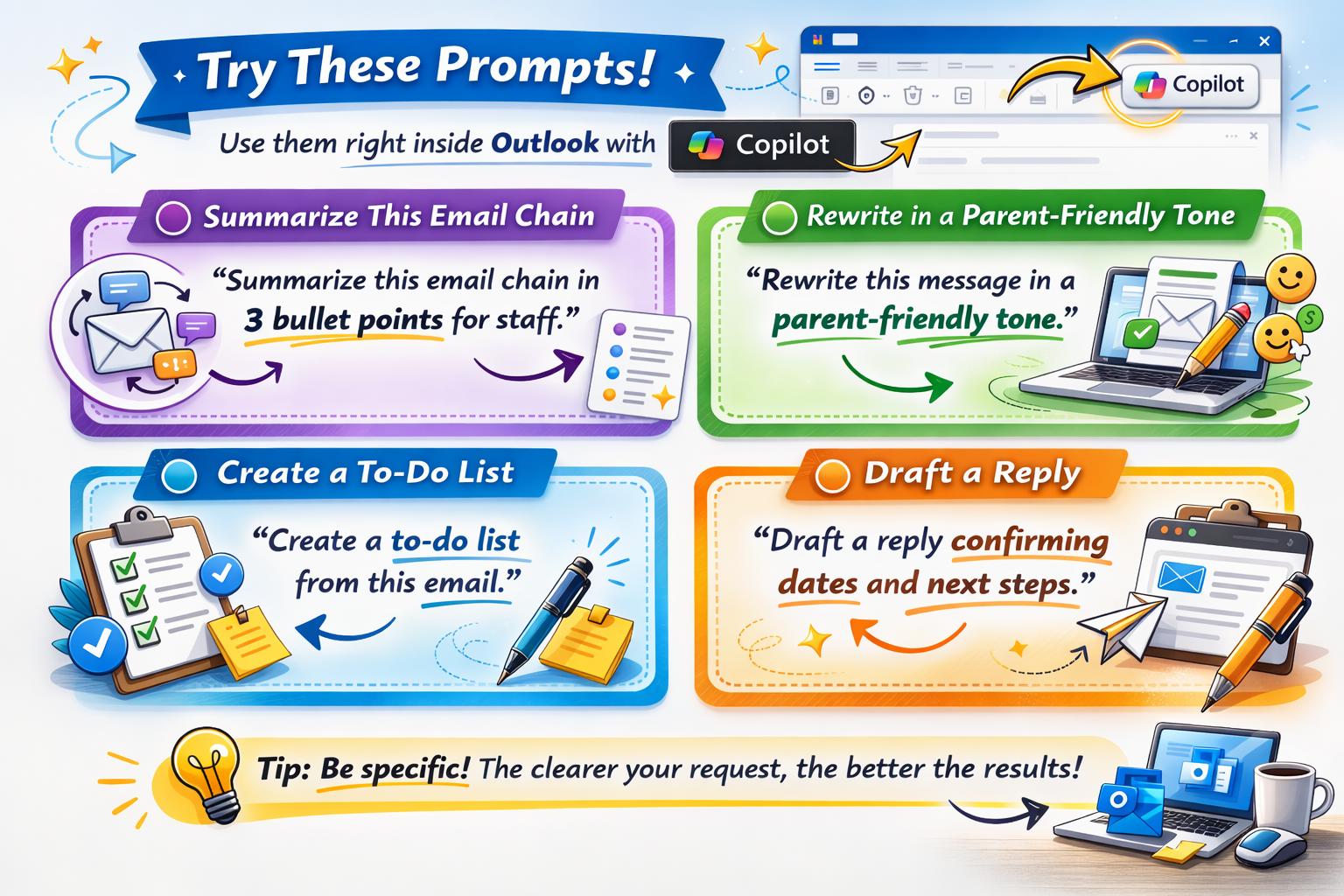
Let Copilot in Outlook do the Heavy Lifting
We’re all counting down to Spring Break, and whether you’re flying off to a sunny beach or simply catching up on your sleep and exploring the beautiful Comox Valley we are wishing you the best. This Tech Tip is to help you catch up on all those emails that will be waiting when we get back. I am going to let Copilot in Outlook do the heavy lifting for me now that it is built in to Outlook and I want to share my tricks with you. With a couple of clicks, Copilot can summarize your unread emails, help draft replies and help make that pile seem less overwhelming. Please remember to read everything over before you send it and stick with the 80-20 rule – make sure at least 20% of it is your personal touch. Please avoid using it if you know the email contains personal information about individual students.
How to Use Copilot in Outlook:
1. Find the Copilot button in the top right of Outlook:
2. Click on the email that you would like to work on to select it.
3. Ask Copilot to help with your work. Here are some ideas:
- summarize this email thread
- draft a reply
- change the tone of the reply you are working on
- Find important dates in an email
- organize the information
- make a to do list
- ask copilot to summarize your unread emails (I can select more than one in my Desktop Outlook by pressing CTRL and holding it down while I click on the messages-I can’t seem to get it to work in the online version-let me know if you figure it out.)