Canva’s Built‑In Accessibility Tools & Windows Key + V
Canva’s Built‑In Accessibility Tools
Are you a power user of Canva, just like me, but worried about creating inclusive and accessible content? Well, worry no more . . .
💡 Did You Know…?
Canva has built‑in accessibility tools?
You can:
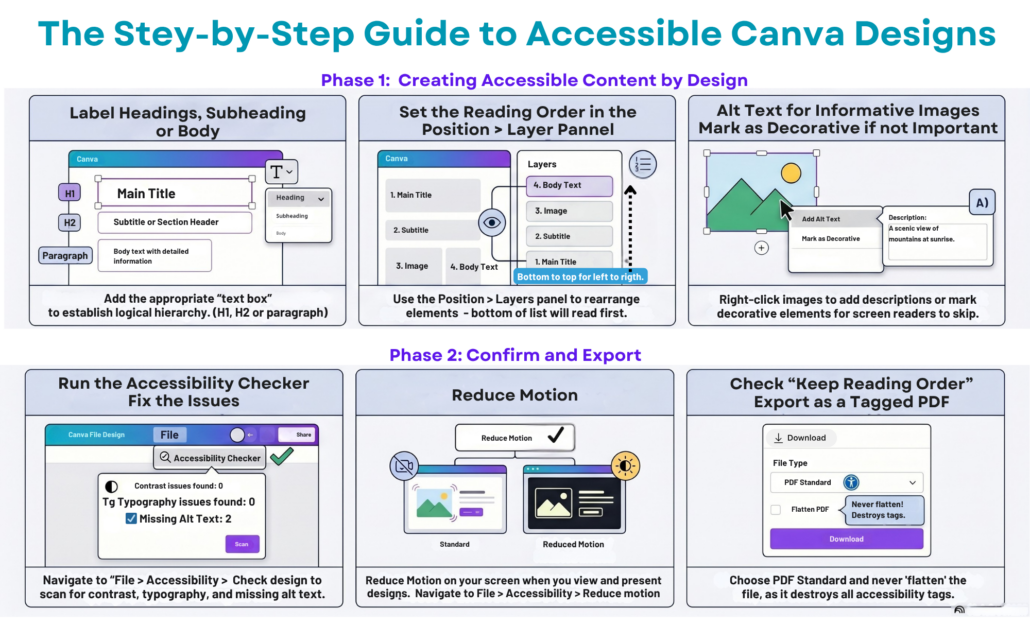
- ️🖼️ Add alt text to images for screen readers
- 🎨 Check colour contrast so text is easier to read
- 🔠 Choose clear, readable fonts for all learners
- 🔍 Use the Accessibility Checker to catch issues before sharing
- 💬 Use the Position > Layers option to manually order text so the reading order is correct for text-to-speech and screen readers
- 💥AND so much more
Small tweaks in Canva can make a big difference for student understanding—and they only take a minute or two!
Click on the image below for a downloadable format or the link for a text-based copy of the Accessibility Tools in Canva.
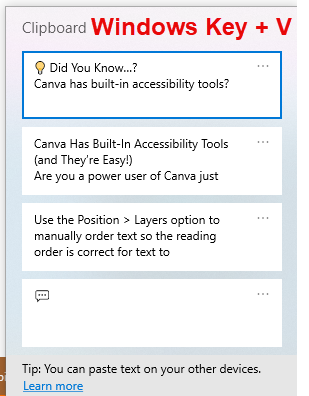
CTRL + V With “Memory”
Have you ever copied something on your computer with the intent to paste it somewhere else, then got distracted and did another task, losing the original “CTRL + C”?
💡 Did You Know…?
🧠 Windows has a “memory” of the items you’ve copied to the “clipboard,” which you can access with the keyboard combo Windows Key + V. It displays a list of the items you’ve copied and lets you choose a specific item to paste.