Tech Tips
  • Home
  • Learn More
  • Menu Menu
Tech Tips

Welcome Your Students Back with your New Microsoft Teams Homepage

​Welcome back everyone! I hope everyone has had a wonderful summer and you are all recharged and ready to inspire young minds. Today I am excited to share some of the changes that Microsoft made over the summer.  Our class Teams now have a Homepage and Flipgrid, a favourite for many teachers,  is now called ​Flip.  Please read on for more information about these changes and don’t hesitate to email me if you have any questions or if you would like support with information technology for you and your class.​

Teams Homepage:

​Our class Teams now have a new Home Page that makes your Team more like a class webpage. On your page you can have resource links, videos, a list of assignments (that is linked to the assignments feature) and you will get analytics about the number of people that visit your team.  Click on Edit in the top right of your Home page to get started.  If you would like to learn more about how is all works, please click here to visit an instruction page​ or watch this seven minute video:​

Flipgrid is now Flip:

Flip (formerly Flipgrid )is a super fun way for students to answer questions, introduce themselves, share information and more. Kids love making videos and Flip is a very engaging video discussion app​​ in which students create short videos that can be shared with your class.​ If you are interested, click here to get started.​ You can sign in with your Microsoft account (your regular work email) to make it easy.  Please make sure to send home a ​district app consent form to make sure your parents know you are using it.
July 9, 2026/by admin
https://learn71.ca/tech-tips/wp-content/uploads/sites/42/2026/07/Tech-Tips-Logo.png 0 0 admin https://learn71.ca/tech-tips/wp-content/uploads/sites/42/2026/07/Tech-Tips-Logo.png admin2026-07-09 08:41:352026-07-09 08:41:35Welcome Your Students Back with your New Microsoft Teams Homepage
Tech Tips

How to Have a Different Display on Your Projector Screen than on Your Computer

Do you have your laptop mirrored on your projector screen or Smartboard so your students see what you are working on? Maybe sometimes you would like your screen projected but other times you would like to have​​ private stuff on your screen while your class is watching something else? Read on for some instructions for how to “Extend Your Screen”.  Also read on for a great STEAM Virtual Workshop opportunity for our students grades 7-12.

How to Extend Your Computer Display

1.  Right click on your desktop screen and select Display settings

2.  Scroll down until you see Multiple displays and click on the box underneath this to select “Extend desktop to this Display”

3.  You can close the Display window now. It may take you a bit of playing to figure out how to move your mouse to the other display (it took me a while).  Many teachers open the window with what they would like the students to see and then  click on it and drag it over to the projector screen.


July 9, 2026/by admin
https://learn71.ca/tech-tips/wp-content/uploads/sites/42/2026/07/Tech-Tips-Logo.png 0 0 admin https://learn71.ca/tech-tips/wp-content/uploads/sites/42/2026/07/Tech-Tips-Logo.png admin2026-07-09 08:23:002026-07-09 08:23:04How to Have a Different Display on Your Projector Screen than on Your Computer
Tech Tips

How to Password Protect a File to Share and some Minecraft Lesson Search Coolness

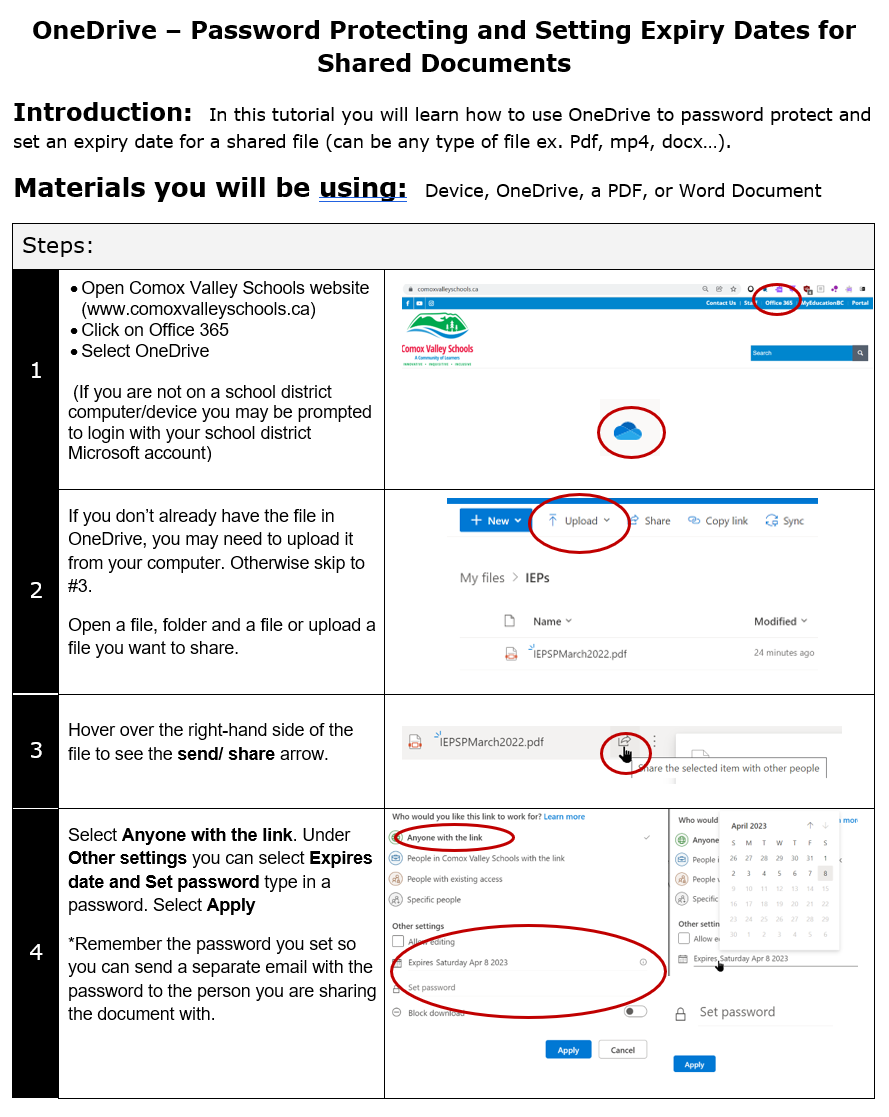
Have you ever needed to send a confidential file to a parent, teacher or student? You can protect that information with a password and expiry date while sharing it in Office 365. You can even prevent them from downloading a file. Read on for instructions (thank you Jane Rondow).  I also want to share a cool tip for our Minecraft users-you can search for lessons by specific BC Learning Standards and Competencies (I know, I can’t believe it).

Today I read an interesting article that I would like to share with you. It seems that whenever we look at the news there is another huge and sometimes terrible event happening (and some good things). Many of our students see these news articles as well and you may feel a need to talk to your students about what they are seeing. This article provides some insight and resources to help you with these difficult discussions: Talking with Students about Shocking or Disturbing News

How to Password Protect a File, Add an Expire Date and Share in Office 365:​


July 9, 2026/by admin
https://learn71.ca/tech-tips/wp-content/uploads/sites/42/2026/07/Tech-Tips-Logo.png 0 0 admin https://learn71.ca/tech-tips/wp-content/uploads/sites/42/2026/07/Tech-Tips-Logo.png admin2026-07-09 08:21:252026-07-09 08:21:25How to Password Protect a File to Share and some Minecraft Lesson Search Coolness
Tech Tips

May the 4th Be With You-Resources and Turning Location Services off on Your Camera

​​Tomorrow is May 4th – a special day for Star Wars fans. Here is an article with some great ways you can celebrate May the fourth with your class: May the 4th Be With You: Best Free Star Wars Teaching Ideas​. Don’t miss the Star Wars Crawl Creator and Lessons from the New York Times.   ​

I have been teaching a lot of lessons lately on Digital Wellness and one of the topics that I want to share with you this week is keeping the location of your photos private. If you have the Location Services turned on when you take pictures, it adds data to your photos about where they were taken. If you then publish these photos on Media, other people can look at the data and find out where your pictures where taken.  This can give away your home address.  Here are some instructions for turning this off on photos on iPhones and Android phones:

Iphone:

1.  Go to Settings

2.  Click on Privacy

3. Click on Location Services

4.  Go down to Camera and click on it then select Never

5.  Go Back, then go down to Photos and click on Never for that one too

Android:

1.  Go to Settings

2.  Click on Apps

3.  Find the Camera and click on it

4.  Click on Permissions

5. Turn off location here

July 9, 2026/by admin
https://learn71.ca/tech-tips/wp-content/uploads/sites/42/2026/07/Tech-Tips-Logo.png 0 0 admin https://learn71.ca/tech-tips/wp-content/uploads/sites/42/2026/07/Tech-Tips-Logo.png admin2026-07-09 08:17:282026-07-09 08:17:41May the 4th Be With You-Resources and Turning Location Services off on Your Camera
Tech Tips

How to Save a Whole Article on Your iPhone/iPad

Today’s Tech Tip is a nice simple one. Have you ever been looking at an article on the internet on your iphone/ipad and wished you could easily send the whole article to a friend or save it to look at later? All you have to do is take a screenshot, click on Full Page and share or copy it.  Here is a short video to show you how:


July 9, 2026/by admin
https://learn71.ca/tech-tips/wp-content/uploads/sites/42/2026/07/Tech-Tips-Logo.png 0 0 admin https://learn71.ca/tech-tips/wp-content/uploads/sites/42/2026/07/Tech-Tips-Logo.png admin2026-07-09 08:16:362026-07-09 08:16:51How to Save a Whole Article on Your iPhone/iPad
Tech Tips

Reflecting in Teams and Tips for Using Computers with the Littles

One great way to get a good feel for ho​​​​w your students are doing is to use the Reflect options in Teams on a regular basis. It is anonymous to the students and it is a safe, fun way to ask them how they are doing (thanks to Tracy, one of our fabulous Teacher Librarians for this idea). Read on to learn more about Teams Reflect and to get some tips for primary teachers using computers with their students.

Tips for Using Computers with Primary Students:

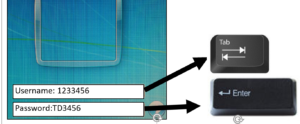
1. Give your students a card that contains their username and password. Click here to open one that you can use​. I recommend filling them out in upper case because that is what they will see on the keyboard.

2. Teach them how to take care of computers and proper behaviour when they are using them. You can use this responsible use agreement: SD#71 Primary Responsible Use Agreement

3. Show them what they are doing before they get on the computer then show them again when they open up the computers.

4.  Start slow. Many will have never used a mouse (but may be familiar with a touch screen). Let them try some games that teach mouse skills: abcya​Skills  – Many of these games are designed just to help kids learn how to click and drag.

5. Start a Typing Program. This will also help students with letter recognition. Click here for instructions to help you use Typing Pal​

6.  You could introduce word processing Click here to read an article with ideas or click here for some lessons to help you

7. Have a signal to get student’s attention and get their hands off of the computers. For example you can have them put their hands on their heads or cross their arms and then you can see that they are not using their computers.  Some teachers have the students turn the laptop around or put the screen at “Half Mast” (half way down not closed which would turn the computer off).

8.  Teach your class Internet Safety.  Here are some great sites to help you: Digital Citizenship for Primary Classes

9. Teach them how to create folders, save files and keep those files organized.​Click here for help with this.

10. Use the computer to teach research skills: Click here for some help with this.

Using Reflect in Teams:

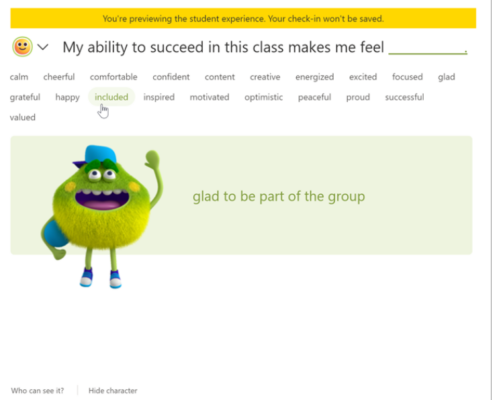
This is an extension in TEAMs that may help students recognize and navigate their emotions by providing regular opportunities to share and be heard. Reflect is a great way to help students think about their feelings and reflect on what you are doing in class. Teachers can keep the responses anonymous so students will never know who each response is from.

Click here for instructions for how to use Reflect.


July 2, 2026/by admin
https://learn71.ca/tech-tips/wp-content/uploads/sites/42/2026/07/Tech-Tips-Logo.png 0 0 admin https://learn71.ca/tech-tips/wp-content/uploads/sites/42/2026/07/Tech-Tips-Logo.png admin2026-07-02 13:14:412026-07-09 08:12:08Reflecting in Teams and Tips for Using Computers with the Littles
Tech Tips

Tech Tip of the Week: Use Search to Find Things Faster

Sometimes the quickest way to get where you need to go is to skip the menus, folders, and scrolling, and use search instead.

Many of the tools we use every day have a built-in search feature. You can search for an email in Outlook or Gmail, a file in OneDrive or Google Drive, a student document on your computer, a setting in an app, or even a specific word inside a long webpage or PDF.

One of the most useful shortcuts to know is:

Ctrl + F on Windows
Command + F on Mac

This shortcut opens a search box that lets you search within the page, document, PDF, spreadsheet, or email thread you are currently viewing. Instead of scrolling through several pages looking for one piece of information, you can type a keyword and jump straight to the part you need.

For example, if you are viewing a long staff handbook, policy document, meeting agenda, or instruction sheet, you could press Ctrl + F and search for words like “password,” “attendance,” “report card,” “printer,” or “deadline.” This is often much faster than reading or scrolling through the entire document.

This also works well when you are looking through long email conversations. Searching for a student name, form name, date, or key phrase can help you find the exact message you need without digging through your inbox manually.

A few search tips:

Try searching for the most unique word related to what you need. For example, searching for “permission” may work better than searching for “form.”

Check your spelling if nothing comes up. Search tools are helpful, but they usually need the word to be spelled the same way it appears in the document.

Use fewer words if your first search does not work. Instead of searching for “how to reset my password,” try searching for “password” or “reset.”

Try this:
The next time you are on a long webpage, PDF, spreadsheet, or email thread, press Ctrl + F or Command + F, type one keyword, and see how quickly you can jump to the information you need.

A small shortcut like this can save a surprising amount of time over the course of a busy school day.

July 2, 2026/by bgallagher
https://learn71.ca/tech-tips/wp-content/uploads/sites/42/2024/08/ParentsWatchingShow.jpg 688 1728 bgallagher https://learn71.ca/tech-tips/wp-content/uploads/sites/42/2026/07/Tech-Tips-Logo.png bgallagher2026-07-02 09:38:202026-07-02 09:39:10Tech Tip of the Week: Use Search to Find Things Faster
Page 7 of 7«‹567

Archive

  • July 2026
  • August 2024

Categories

  • Tech Tips

Facebook

Instagram

No images available at the moment

Follow Me!

Footer

Footer 2

Scroll to top Scroll to top Scroll to top