Happy Tuesday! This week’s Tech Tip, by Shannon Hagen, zooms in on the power of QR codes—those square-shaped barcodes that you can quickly scan with your phone or iPad to get to a website or open digital content. As this year’s Code Quest Arcade gets closer, we are asking anyone who would like to have their class share their coding projects to please take a moment to open this link (Arcade Presenter Form) and fill out a quick form by May 3rd. It’s just to help us know how many computers we need for the event.
QR codes are being used more and more as people figure out how to use them effectively. They allow users to quickly access information from a web browser just by scanning the QR code with a mobile device. In the past, we would have to use a separate app or program to create these codes. Now however, it is built right into the Edge browser.
(It can be done in Chrome but with a couple of extra steps)
Follow the directions below to do this:
1. Open the Edge browser. The icon looks like this:

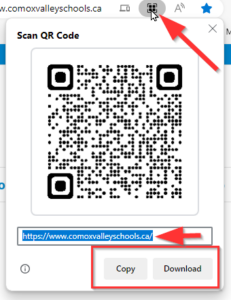
2. Type in the website address you would like to create a QR code from in the address bar. Press Enter to go to the site. (You won’t see the QR code icon yet).
3. Click on the address bar right next to the website address. You now see a few icons being displayed on the far right.

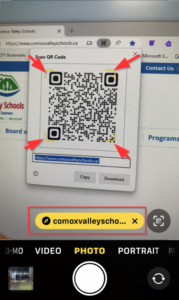
4. Click on the QR code icon (see image above). This will open up another window which will allow you to Copy or Download the QR code.
5. The user just has to open the camera app on the mobile device and frame the QR code in the yellow brackets displayed on the screen. The link will be displayed at the bottom of the screen. Tap on this to open the website.
Use the directions listed below for creating Shareable Links from QR codes.
👆Creating Sharable Links from QR Codes
For Google Chrome:
Open the Chrome Browser. Enter in website address. Press Enter to go to site.
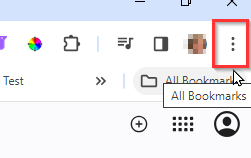
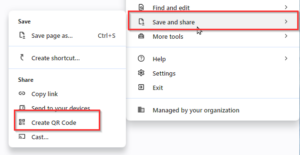
Click on “…” (ellipses) on the far right of the address bar at the top. Select “Save and share” -> “Create QR code.”
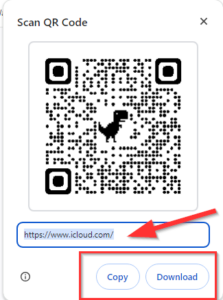
Clicking on it will open another window to “Copy or Download”.
Hope everyone had a fun and relaxing Spring Break. Have you ever had a PDF that consisted of a table with a list that you wanted to be able to edit? If it was a Word document, you could open it in Word, and it would convert it. Unfortunately, it doesn’t work that way in Excel. However, you can insert a pdf once you’re inside Excel, which will then convert the contents into a table.
This would be useful if you had a list of contacts or a schedule that was in a pdf format, but you wanted to be able to edit it.
Follow the directions below to do this:
1. Open Excel
2. Go to “Data” top tab -> “Get Data” from the ribbon -> From File -> From PDF
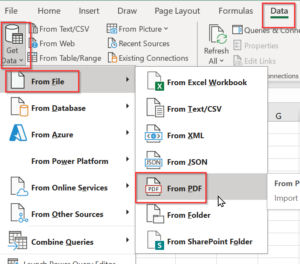
3. Locate the PDF from your computer -> Import.
4. Select “Table” -> “Load” (NOT transform data).
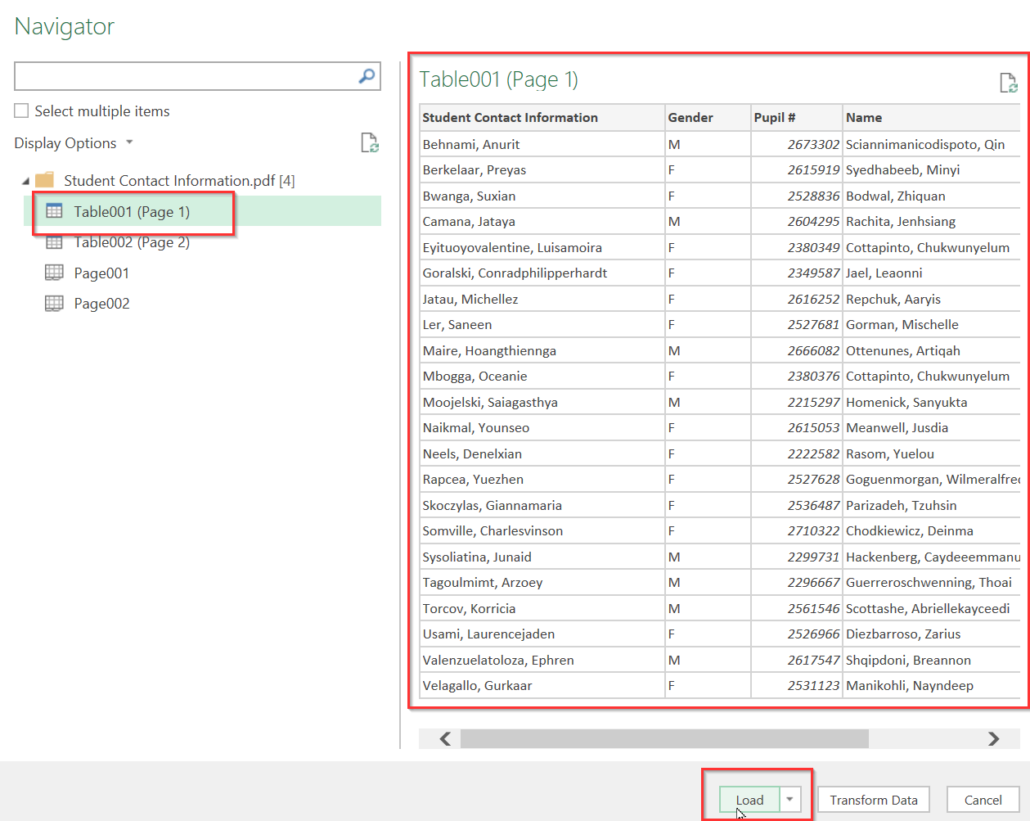
If there are two tables in the pdf (as in the image above), this process will need to be repeated. The second table will be added as a separate spreadsheet and can be accessed by clicking on the tab at the bottom of the excel document.
If you would like all the data in one spreadsheet (one table) just copy and paste the data from one spreadsheet to the other.
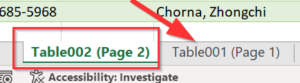
The data will be imported AND automatically converted to a table. This will allow you to use the drop-down arrows at the top of each column to manipulate your data easily.

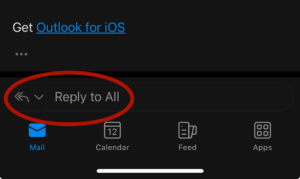
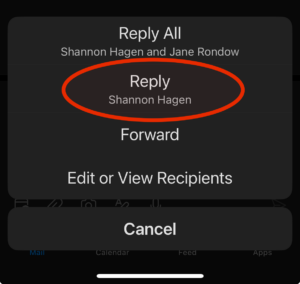
Spring Break is just about here, and we just can’t resist sharing a couple of techie online Easter Eggs with you. Tech Easter eggs are undocumented hidden messages or features that the developers have hidden in software. But first, a little reminder about using “Reply all” in your emails. Before hitting “Reply All” on an email, please ask yourself: “Does everyone on this list need to see my response?” I know it is an embarrassing mistake that I have made before. If you hit “Reply all” as your email reply, you may accidentally have it set as your default. Read below for a couple of fun Easter Eggs and some instructions to make sure that “Reply All” is not your default for email replies.
Easter Eggs:
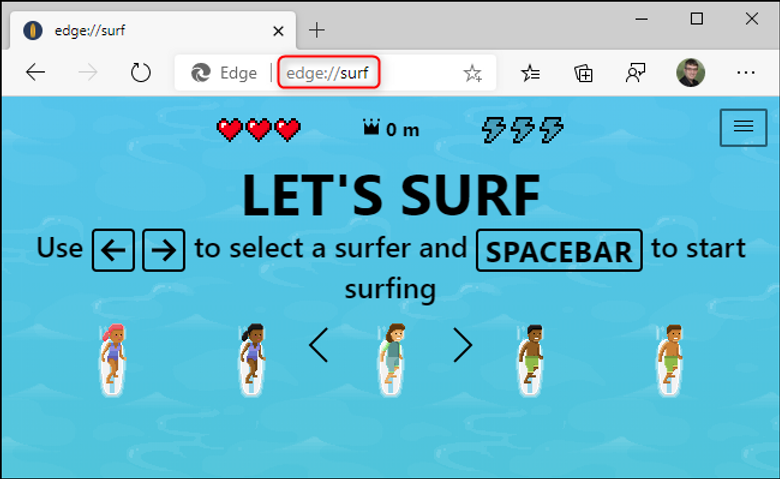
1. In The Edge Browser (yes, we might be promoting this one a bit) type in edge://surf at the top where you type in URLs. You will get a fun surfing game! Before the game starts, type in Microsoft and you will get unlimited lives.
2. I suppose I shouldn’t leave out Google Chrome. If you type in chrome://dino you will get that fun dino game the kids always play when the internet is down. You do have to be in Google Chrome for it to work.
3. The hidden emoji game in Instagram – my daughter told me about this one. Use Direct Message (dm) to send someone an emoji. They can then press on it to open a pong game.
If you like these, click here to see the Easter Eggs I shared last spring.
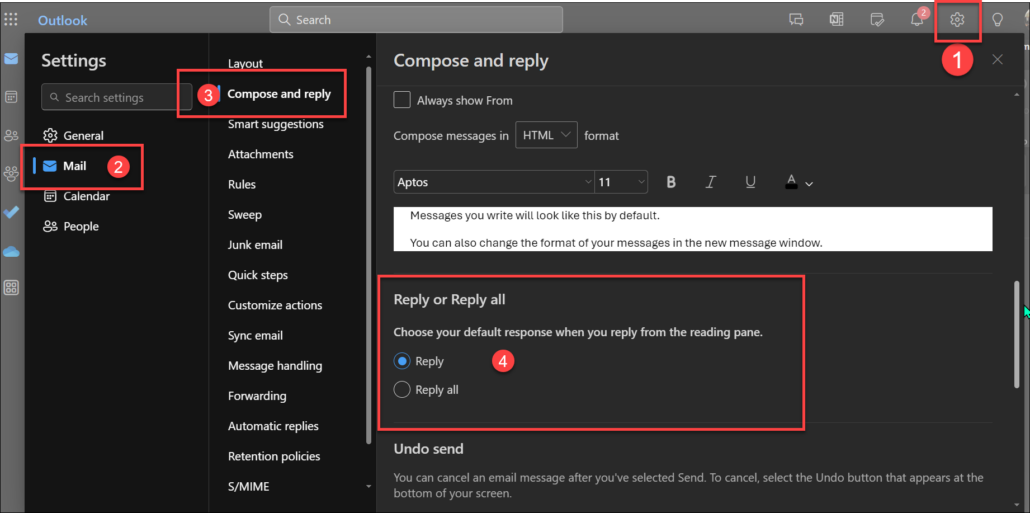
How to Make Sure Reply All is not your Default
For your online email, open your Outlook email
1. Click on the Settings Wheel in the top right
2. Click on Mail
3. Click on Compose and reply
4. Click on the circle that has “Reply” under Reply or Reply all