
Today’s Tech Tip is a nice simple one. Have you ever been looking at an article on the internet on your iphone/ipad and wished you could easily send the whole article to a friend or save it to look at later? All you have to do is take a screenshot, click on Full Page and share or copy it. Here is a short video to show you how:
One great way to get a good feel for how your students are doing is to use the Reflect options in Teams on a regular basis. It is anonymous to the students and it is a safe, fun way to ask them how they are doing (thanks to Tracy, one of our fabulous Teacher Librarians for this idea). Read on to learn more about Teams Reflect and to get some tips for primary teachers using computers with their students.
Tips for Using Computers with Primary Students:
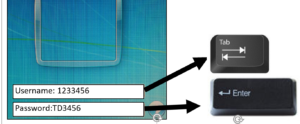
1. Give your students a card that contains their username and password. Click here to open one that you can use. I recommend filling them out in upper case because that is what they will see on the keyboard.
2. Teach them how to take care of computers and proper behaviour when they are using them. You can use this responsible use agreement: SD#71 Primary Responsible Use Agreement
3. Show them what they are doing before they get on the computer then show them again when they open up the computers.
4. Start slow. Many will have never used a mouse (but may be familiar with a touch screen). Let them try some games that teach mouse skills: abcyaSkills – Many of these games are designed just to help kids learn how to click and drag.
5. Start a Typing Program. This will also help students with letter recognition. Click here for instructions to help you use Typing Pal
6. You could introduce word processing Click here to read an article with ideas or click here for some lessons to help you
7. Have a signal to get student’s attention and get their hands off of the computers. For example you can have them put their hands on their heads or cross their arms and then you can see that they are not using their computers. Some teachers have the students turn the laptop around or put the screen at “Half Mast” (half way down not closed which would turn the computer off).
8. Teach your class Internet Safety. Here are some great sites to help you: Digital Citizenship for Primary Classes
9. Teach them how to create folders, save files and keep those files organized.Click here for help with this.
10. Use the computer to teach research skills: Click here for some help with this.
Using Reflect in Teams:
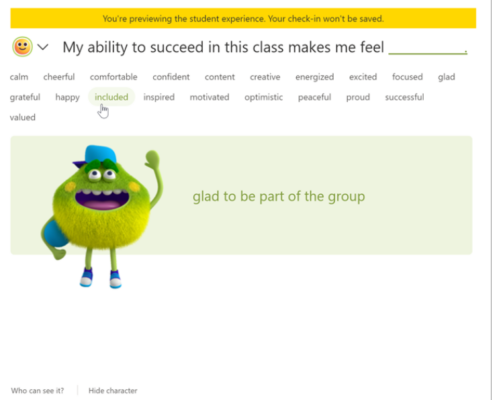
This is an extension in TEAMs that may help students recognize and navigate their emotions by providing regular opportunities to share and be heard. Reflect is a great way to help students think about their feelings and reflect on what you are doing in class. Teachers can keep the responses anonymous so students will never know who each response is from.
Click here for instructions for how to use Reflect.

Sometimes the quickest way to get where you need to go is to skip the menus, folders, and scrolling, and use search instead.
Many of the tools we use every day have a built-in search feature. You can search for an email in Outlook or Gmail, a file in OneDrive or Google Drive, a student document on your computer, a setting in an app, or even a specific word inside a long webpage or PDF.
One of the most useful shortcuts to know is:
Ctrl + F on Windows
Command + F on Mac
This shortcut opens a search box that lets you search within the page, document, PDF, spreadsheet, or email thread you are currently viewing. Instead of scrolling through several pages looking for one piece of information, you can type a keyword and jump straight to the part you need.
For example, if you are viewing a long staff handbook, policy document, meeting agenda, or instruction sheet, you could press Ctrl + F and search for words like “password,” “attendance,” “report card,” “printer,” or “deadline.” This is often much faster than reading or scrolling through the entire document.
This also works well when you are looking through long email conversations. Searching for a student name, form name, date, or key phrase can help you find the exact message you need without digging through your inbox manually.
A few search tips:
Try searching for the most unique word related to what you need. For example, searching for “permission” may work better than searching for “form.”
Check your spelling if nothing comes up. Search tools are helpful, but they usually need the word to be spelled the same way it appears in the document.
Use fewer words if your first search does not work. Instead of searching for “how to reset my password,” try searching for “password” or “reset.”
Try this:
The next time you are on a long webpage, PDF, spreadsheet, or email thread, press Ctrl + F or Command + F, type one keyword, and see how quickly you can jump to the information you need.
A small shortcut like this can save a surprising amount of time over the course of a busy school day.