
Do you have your laptop mirrored on your projector screen or Smartboard so your students see what you are working on? Maybe sometimes you would like your screen projected but other times you would like to have private stuff on your screen while your class is watching something else? Read on for some instructions for how to “Extend Your Screen”. Also read on for a great STEAM Virtual Workshop opportunity for our students grades 7-12.
How to Extend Your Computer Display
1. Right click on your desktop screen and select Display settings
2. Scroll down until you see Multiple displays and click on the box underneath this to select “Extend desktop to this Display”
3. You can close the Display window now. It may take you a bit of playing to figure out how to move your mouse to the other display (it took me a while). Many teachers open the window with what they would like the students to see and then click on it and drag it over to the projector screen.
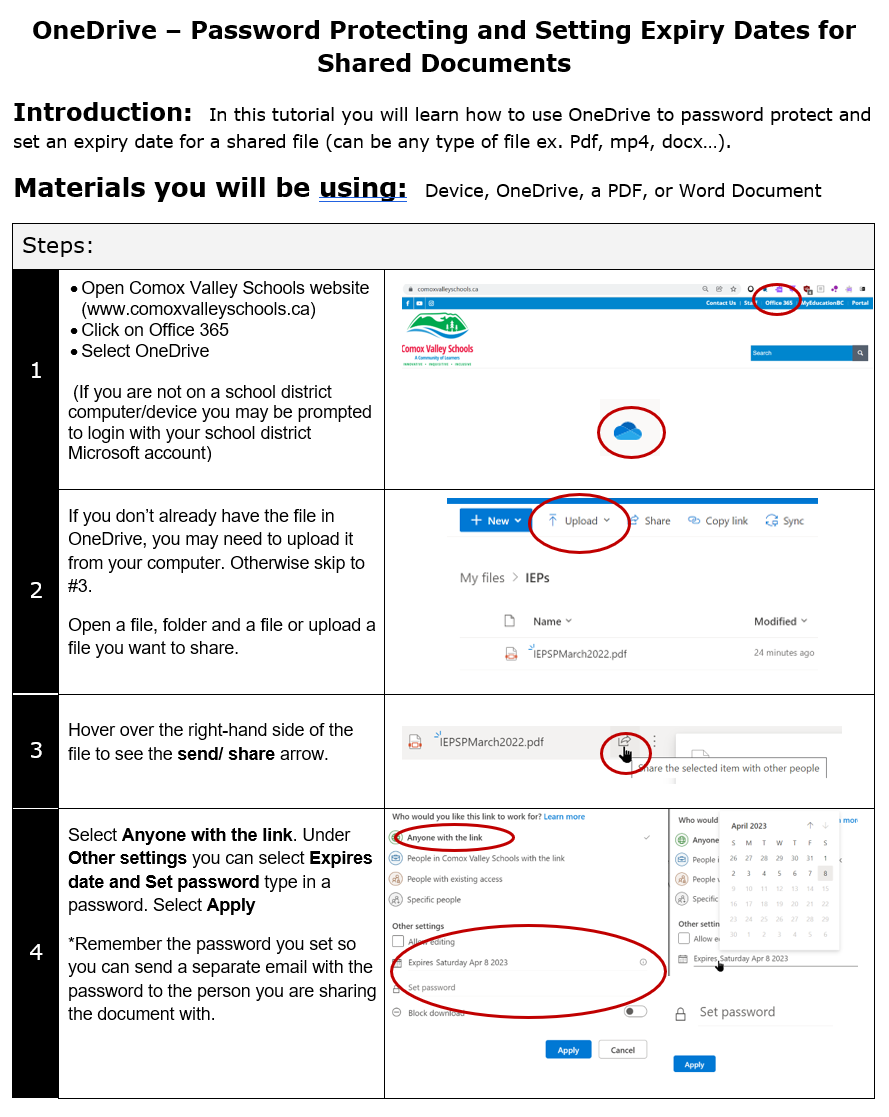
Have you ever needed to send a confidential file to a parent, teacher or student? You can protect that information with a password and expiry date while sharing it in Office 365. You can even prevent them from downloading a file. Read on for instructions (thank you Jane Rondow). I also want to share a cool tip for our Minecraft users-you can search for lessons by specific BC Learning Standards and Competencies (I know, I can’t believe it).
Today I read an interesting article that I would like to share with you. It seems that whenever we look at the news there is another huge and sometimes terrible event happening (and some good things). Many of our students see these news articles as well and you may feel a need to talk to your students about what they are seeing. This article provides some insight and resources to help you with these difficult discussions: Talking with Students about Shocking or Disturbing News
How to Password Protect a File, Add an Expire Date and Share in Office 365:
Tomorrow is May 4th – a special day for Star Wars fans. Here is an article with some great ways you can celebrate May the fourth with your class: May the 4th Be With You: Best Free Star Wars Teaching Ideas. Don’t miss the Star Wars Crawl Creator and Lessons from the New York Times.
I have been teaching a lot of lessons lately on Digital Wellness and one of the topics that I want to share with you this week is keeping the location of your photos private. If you have the Location Services turned on when you take pictures, it adds data to your photos about where they were taken. If you then publish these photos on Media, other people can look at the data and find out where your pictures where taken. This can give away your home address. Here are some instructions for turning this off on photos on iPhones and Android phones:
Iphone:
1. Go to Settings
2. Click on Privacy
3. Click on Location Services
4. Go down to Camera and click on it then select Never
5. Go Back, then go down to Photos and click on Never for that one too
Android:
1. Go to Settings
2. Click on Apps
3. Find the Camera and click on it
4. Click on Permissions
5. Turn off location here