This Tuesday I am thrilled to announce this year’s Minecraft Challenge – The Perfect Future City! Read on learn more details about this and how to find some awesome free lessons to go with Minecraft. Tracy Richards and I are also excited to let you know that we will be doing two “Minecraft in the Classroom” workshops on October 21st. Read on to learn more!
The year is 4023 and our world looks nothing like it used to. Your challenge is to use Minecraft to design a city in the future. Will this city be on Earth, under the Earth, in an extreme biome, floating in space, underwater or on another planet? It is all up to you. Please watch the video below to learn more and visit Learn71.ca and click on Minecraft Challenge to find resources and more.
I know that everyone is looking forward to our Thanksgiving weekend. I have lots to be thankful for this year 🙂 I am hoping you will also be thankful for this new resource that we have subscribed to. We joined the National Film Board a few years ago and brought you many all time classics like “The Sweater” and my favourite ,”The Great Toy Robbery”. Now the National Film Board has an Educational Campus that brings us Educator Guides, Lessons, curated playlists (I just found one on Stop-Motion animation) and the ability to search by subject. It also gives you access to more than 5800 English, French and Indigenous language National Film Board productions including documentaries, animation and interactive resources.
Click here or click on the picture to open the instructions and more information about the National Film Board Campus

To find our link to the National Film Board:
1. Visit Learn71.ca
2. Click on Research Databases on the right
3. Click on Videos
4. Click on the National Film Board link
5. After you sign up and sign in for this one, you need to sign in for the Campus. Scroll down on the right and you will find a registration link:

6. After you click on Check Here, type in your school name or Comox and you will find our district name there
7. I think you need to write to them to ask for the code.
I am so happy to have heard from so many people last week and I am so sorry that I neglected to give the instructions for how to get into Canva (oops). Please read on for instructions for how to get in to Canva. Many teachers moved classrooms over the summer or got a new Brightlink (Epson) projector installed in your classroom and some moved into a classroom with a Smartboard. Read on for some support to help you use your projector for interactive projects and engaging activities. If you are new to ePortfolios or have been doing them for years and have knowledge to share, read on for information about our Work and Sharing Session tomorrow afterschool.
How to Get in to Canva:
The easiest way for teachers and students to get in is to:
1. Go to canva.com
2. Click on Log In in the top right
3. Click on Continue in Another Way (Continue with email works too)
4. Choose to log in with your Microsoft Account
5. Now just log in using your school district email address and regular password.
Brightlink/Smartboard Support
If you have an Epson Brightlink projector in your classroom you should have pens that work with it making it interactive. Look for a play button on the side or controls on the bottom that enable you to switch the pen between being a drawing/writing tool and a mouse clicker.
If you have a play button on the left or right side, click here for some instructions to help you.
If you have a very new Brightlink with controls at the bottom, click here for some instructions to help you.
If you are using a Brightlink or a Smartboard, Lumio is fabulous program to use with it.
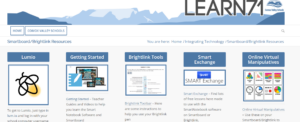
Visit Learn71.ca, click on Integrating Technology, then click on the Lumio/Brightlink/Smartboard button on the right. to find links to help you get started with Lumio. Also check out all the amazing virtual manipulatives that you can use with your students to teach Math.