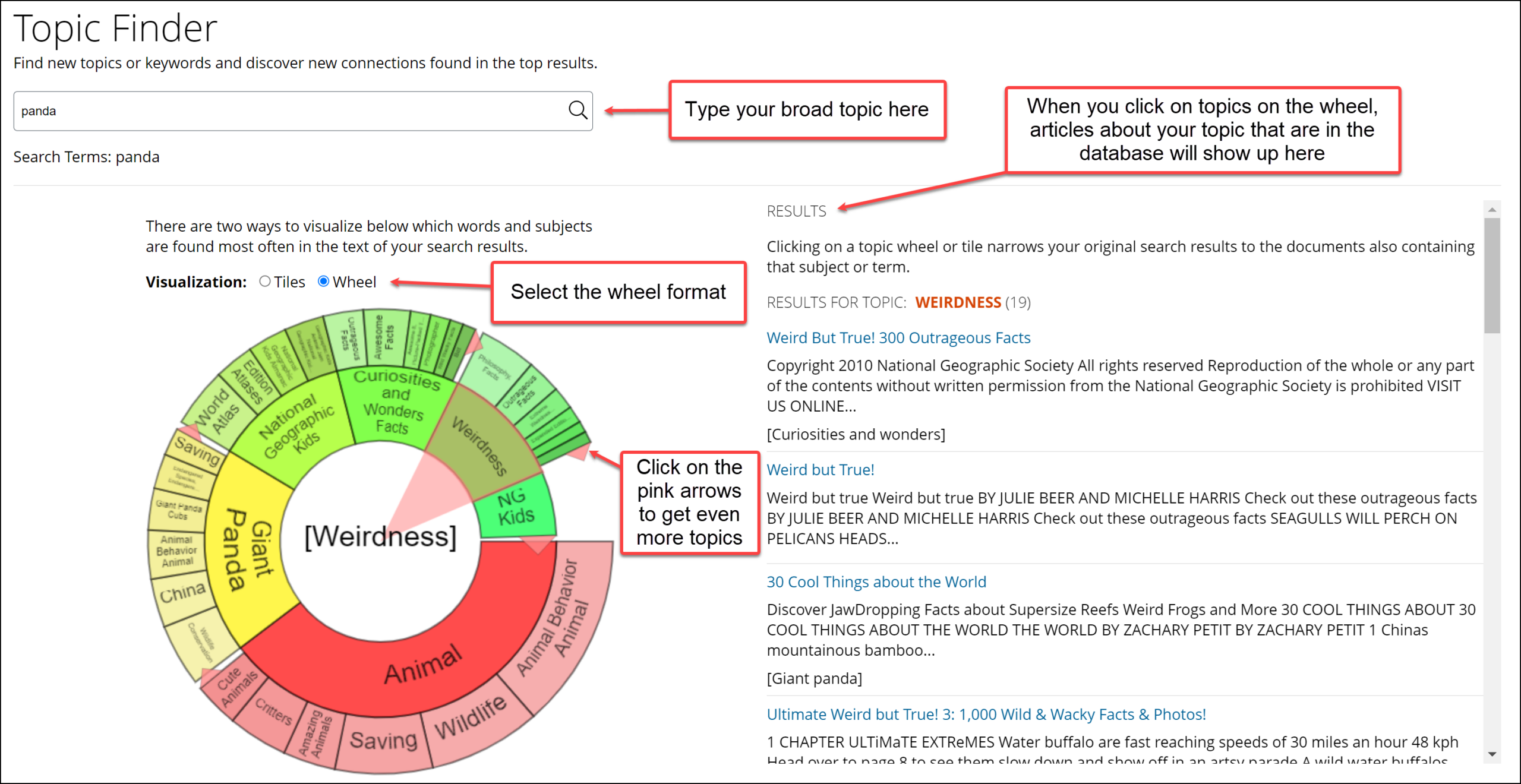
I can’t resist another opportunity to share the resources that Lisa Read from Focused Ed shared with us a few weeks ago. World Book Timelines is a powerful tool that can help your students visualize historical events. With this tool, students can create and explore interactive timelines that feature a wide range of events, topics and periods, including art, music, politics, world history, science and more.
Here are a few ideas for using World Book Timelines:
- Assign a timeline project: Ask your students to create their own timelines on a particular topic. For example, they could create a timeline of important inventions or they could create a timeline of a events that occurred in a novel. Encourage them to include multimedia elements, such as images and videos to make their timelines more engaging.
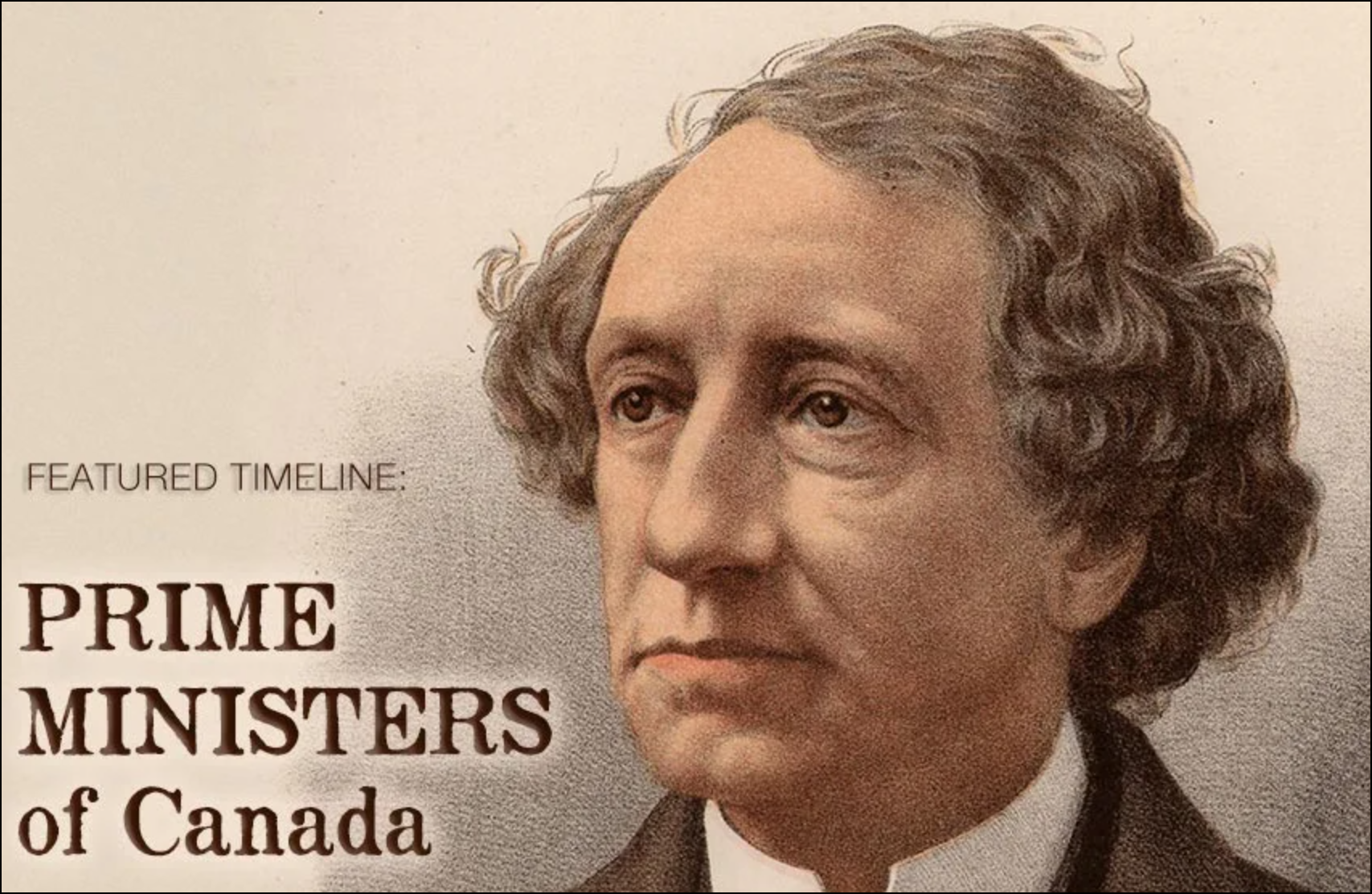
- Use timelines to learn about historic events like the Prime Ministers of Canada.

- Create collaborative timelines: Divide your students into small groups and ask them to create collaborative timelines on a particular topic. This can be a great way to promote teamwork and encourage your students to learn from one another.
I can’t believe tomorrow is the beginning of March! The Minecraft Challenge is coming to a close and I am really looking forward to the “Old Timey Newspapers” session with Lisa Read on Thursday (scroll down to learn more). Today I discovered two really cool little tricks that I am excited to share with you. The first one enables you to create a link that takes you to a specific section of an article or website in Google Chrome and the other super cool trick is for iPhone/iPad users (Hint: when you are looking at photos did you ever notice a little sparkle by the i underneath?).
Creating a Link to Specific Text on a Page:
You can create a link to a specific spot in an online page and share it so the receiver does not have to read an entire article to get to the spot you intend them to see.
Here’s how:
1. Use Google Chrome
2. Locate the text that you would like to share
2. Highlight the part of the article that you would like to direct the reader to.
3. Right click and click on Copy link to Highlight
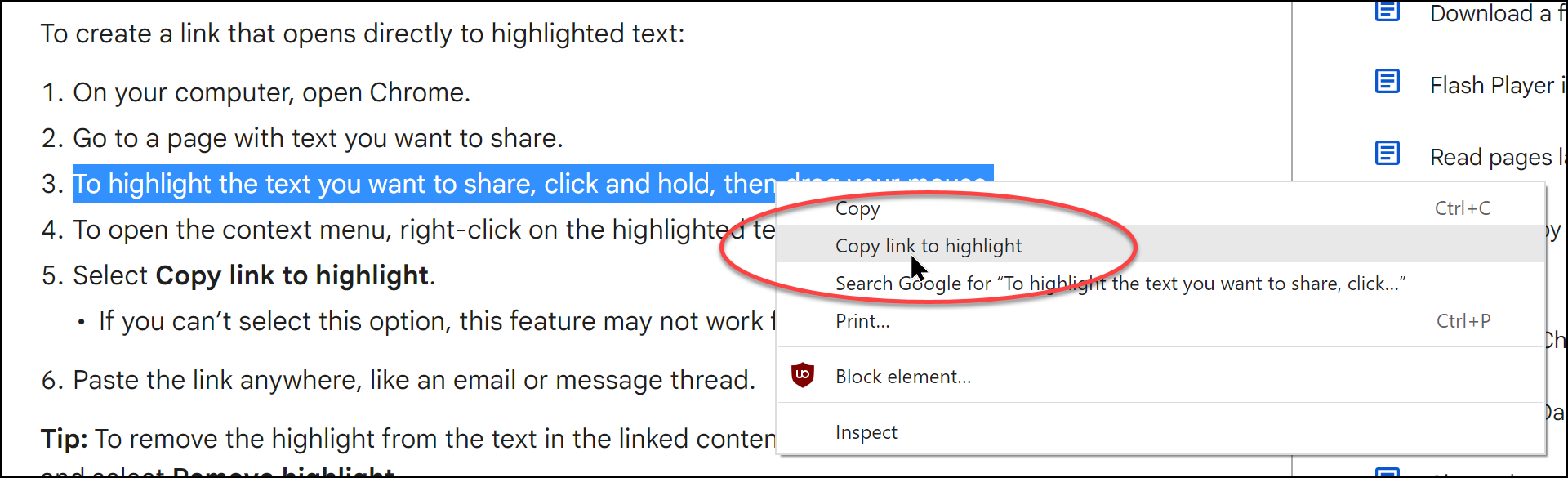
4. Now you can share that link and the receiver will be able to open it directly to the selection you highlighted (and yes, it is still highlighted)
*This also works on ipads/iPhones and Android devices
Visual Look Up on iPhones and iPads: 
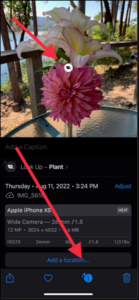
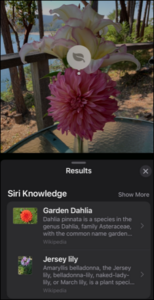
This one is so awesome! I noticed a little sparkle by the i under a photo of a flower arrangement that I took. After looking it up I discovered that if you click on the i it will bring up more information about the object of the photo. This works for popular landmarks, statues, art, plants, pets, and more!
How it works:
1. Open a photo that is of something that may be identifiable (plant, animal, landmark…)
2. Click on the if one appears (not all objects will get this-only ones that can be looked up)
3. Now click on the image that appears on your photo and you will see the information underneath.