How to Use Your Brightlink and How to Get into Canva
I am so happy to have heard from so many people last week and I am so sorry that I neglected to give the instructions for how to get into Canva (oops). Please read on for instructions for how to get in to Canva. Many teachers moved classrooms over the summer or got a new Brightlink (Epson) projector installed in your classroom and some moved into a classroom with a Smartboard. Read on for some support to help you use your projector for interactive projects and engaging activities. If you are new to ePortfolios or have been doing them for years and have knowledge to share, read on for information about our Work and Sharing Session tomorrow afterschool.
How to Get in to Canva:
The easiest way for teachers and students to get in is to:
1. Go to canva.com
2. Click on Log In in the top right
3. Click on Continue in Another Way (Continue with email works too)
4. Choose to log in with your Microsoft Account
5. Now just log in using your school district email address and regular password.
Brightlink/Smartboard Support
If you have an Epson Brightlink projector in your classroom you should have pens that work with it making it interactive. Look for a play button on the side or controls on the bottom that enable you to switch the pen between being a drawing/writing tool and a mouse clicker.
If you have a play button on the left or right side, click here for some instructions to help you.
If you have a very new Brightlink with controls at the bottom, click here for some instructions to help you.
If you are using a Brightlink or a Smartboard, Lumio is fabulous program to use with it.
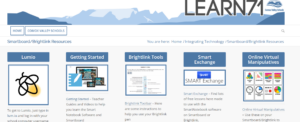
Visit Learn71.ca, click on Integrating Technology, then click on the Lumio/Brightlink/Smartboard button on the right. to find links to help you get started with Lumio. Also check out all the amazing virtual manipulatives that you can use with your students to teach Math.