The use of AI is rapidly increasing in the world and in our schools. We value your insights and experiences, and invite you to share them with us by filling out this brief survey:
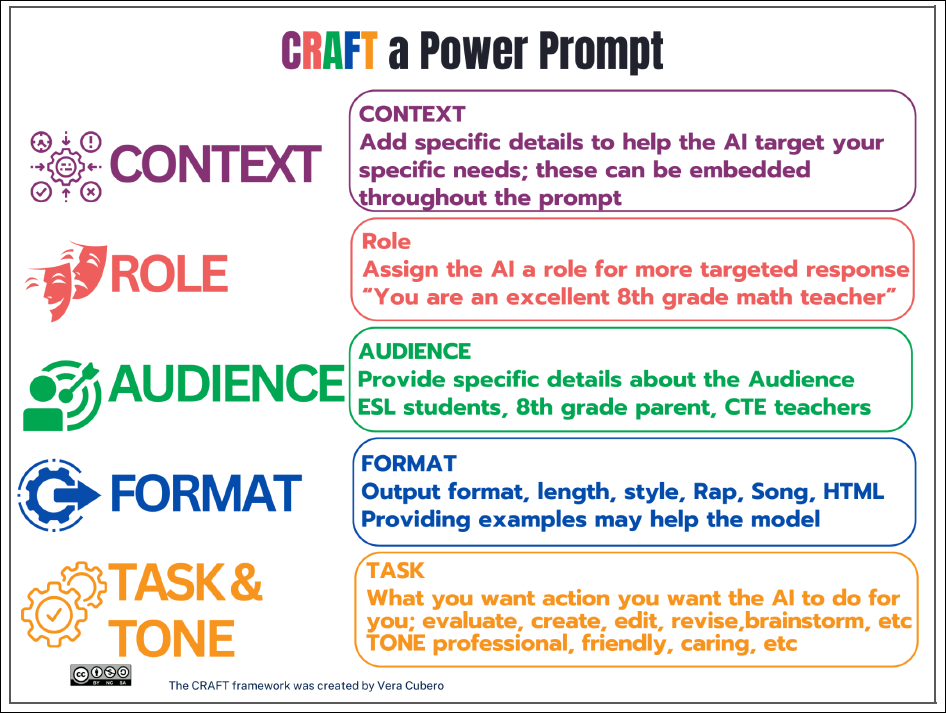
Creating engaging and effective prompts for ChatGPT/Bing Copilot can be challenging but once you figure it out you can make your job a lot easier! Here are some tips that we found recently for crafting prompts that will help you get meaningful responses from ChatGPT/Copilot:
https://learn71.ca/tech-tips/wp-content/uploads/sites/42/2026/07/Tech-Tips-Logo.png00adminhttps://learn71.ca/tech-tips/wp-content/uploads/sites/42/2026/07/Tech-Tips-Logo.pngadmin2026-07-09 09:55:352026-07-09 09:55:35AI and the Art of Prompting
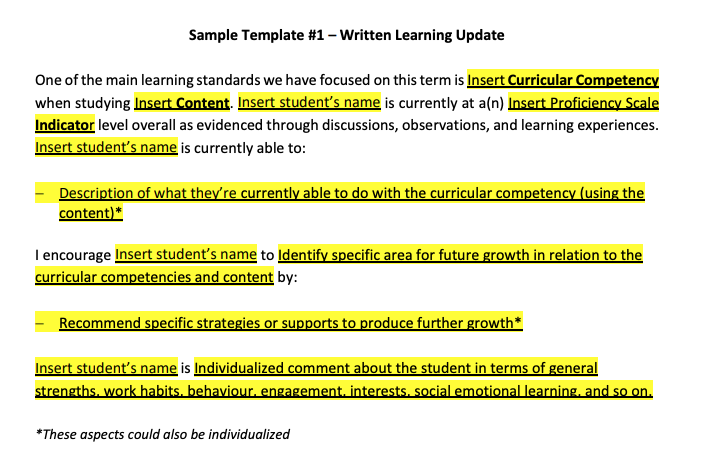
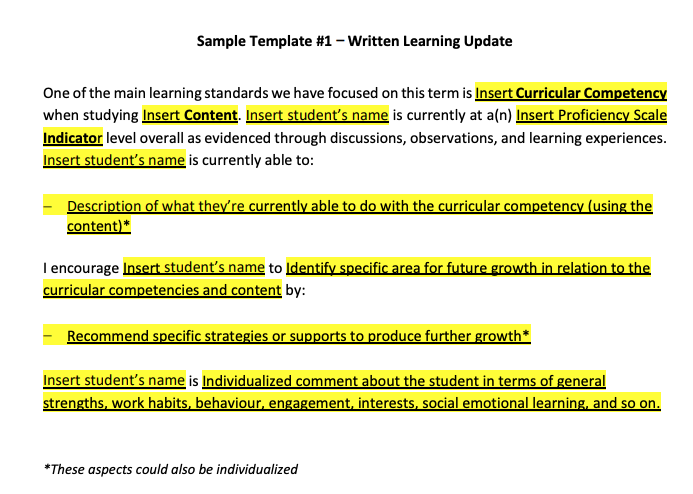
Report cards (learning updates) are coming due quickly. Are you struggling with writing descriptive feedback that doesn’t take up too much time? Some templates have been created that can be referred to when writing your descriptive feedback that will help you with the process.
Elementary
Secondary
For more information on writing descriptive feedback, visit the learn71.ca site. It contains some videos and additional examples as well as a document containing specific descriptive words representing the different proficiencies.
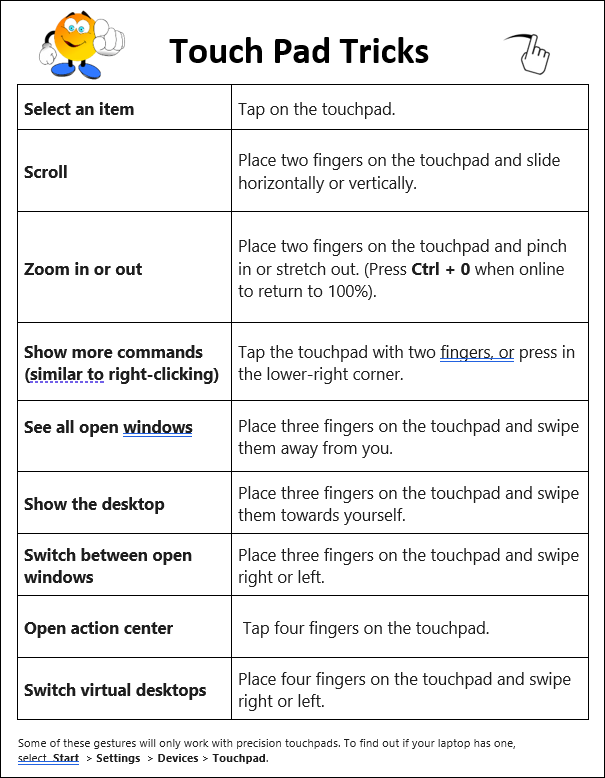
Welcome back and all the best to you all in the new year! Am I the only one out there who struggles with using the touch pad on my laptop? I don’t know how many times I have accidentally used two fingers and enlarged my screen so much that I can’t read it (you can press Ctrl +0 to make it go back to 100% if you are online). Here are some touch pad tips that might help you when you don’t have a mouse. These can also be handy for our students who often don’t have access to a mouse. Please read on for touch pad tricks and some learning opportunities for those interested in learning more about Brightspace.
https://learn71.ca/tech-tips/wp-content/uploads/sites/42/2026/07/Tech-Tips-Logo.png00adminhttps://learn71.ca/tech-tips/wp-content/uploads/sites/42/2026/07/Tech-Tips-Logo.pngadmin2026-07-09 09:52:362026-07-09 09:52:36Touch Pad Tips
This Tuesday we are happy to let you know that you have access to Adobe Express! Like Canva, Adobe Express is a fabulous creative program and it is free for educators. Adobe Express is fantastic for multimedia projects. It’s user-friendly, integrates well with other Adobe products, and is great for storytelling, especially with videos. I love the AI generated images you can create in it!
One of the biggest differences between Adobe Express and Canva is that Adobe Express has slightly more advanced features and may suit those with some design knowledge. Canva, on the other hand, offers plenty more premade templates and is more beginner and user-friendly.
3. Click on Continue with email and type in your school district email.
4. If it asks if it is for a Personal Account or Company or School Account, choose Company or School Account. At this point when you are at work it should take you straight in.
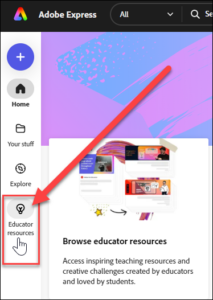
If you are not familiar with Adobe Express, I recommend that you click on Educator Resources on the left. There are lots of great videos, lesson plans, templates and more to help you get started.
NOTE: If you have trouble getting in in Google Chrome, try the Edge Browser or Firefox.
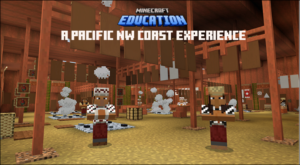
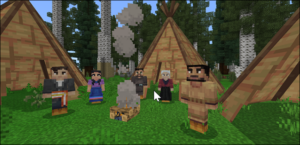
Last week I had the awesome opportunity to listen to two fabulous Coquitlam School District teachers take us through the Minecraft world they designed with Microsoft, and of course, I couldn’t wait to share it with you! In “A Pacific Northwest Coastal Experience” students travel back in time to visit a kʷikʷəƛəm village. Here they meet the Elders in the Big House and learn to harvest cedar planks, salmon, salmonberries and camas bulbs. Visitors get to go and try all these tasks out and learn more about the Indigenous ways of knowing and being. It is truly amazing to be in Minecraft walking the woods that we know with the animals that we see every day! It is a fabulous world to explore and I recommend taking your classes through it. There is also an easy to follow teacher guide with great lessons for you to follow on your journey with lesson extensions. If you would like a hand with these lessons please let me know-I love teaching with Minecraft and am happy to help out!
Just a reminder that if you have any problems with your computer, printer, laptop or other techie equipment, you can email ITHelpdesk@sd71.bc.ca or put the ticket in yourself which is much faster: open this link in your browser- https://ithelpdesk.sd71.bc.ca/ login using your district email address and password, then simply fill out the request form as detailed as you can.
https://learn71.ca/tech-tips/wp-content/uploads/sites/42/2026/07/Tech-Tips-Logo.png00adminhttps://learn71.ca/tech-tips/wp-content/uploads/sites/42/2026/07/Tech-Tips-Logo.pngadmin2026-07-09 09:48:142026-07-09 09:48:14IT Help Tickets
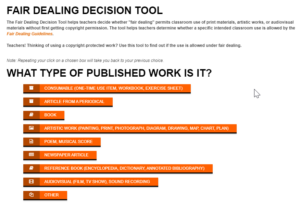
I hope everyone had a fabulous long weekend. Today I am happy to share a site I was introduced to a few weeks ago (thanks Josh for today’s tip 😊). This site is designed to help teachers figure out if “fair dealing” permits classroom use of print materials, works of art, or audiovisual materials without first getting copyright permission. I am also excited to remind you that the Educators of the Galaxy first dinner series workshop, Guardians of the Graphic: A Canva Course, is coming up in a couple of weeks! The swag was delivered today (hint: it was designed in Canva) and we can’t wait to share! The deadline is October 19th for the first session. Read on for more information about the Fair Dealing Decision Tool and how to sign up for the free dinner series.
Fair Dealing Decision Tool:
This amazing tool is super helpful when you are trying to decide whether it is ok to use a picture or part of book when designing lessons for our students (it also helps me figure out what is ok to use when posting online).
https://learn71.ca/tech-tips/wp-content/uploads/sites/42/2026/07/Tech-Tips-Logo.png00adminhttps://learn71.ca/tech-tips/wp-content/uploads/sites/42/2026/07/Tech-Tips-Logo.pngadmin2026-07-09 09:47:462026-07-09 09:47:46Copyright-Fair Dealing Decision Tool and Don’t Forget to Sign Up
We are super excited that we now have access to Pebble Go and Pebble Go Next. We have purchased four modules for grades K-2: Animals, Science, Social Studies, Health and for Pebble Go Next (Grades 3-5) we have the Science module. Pebble Go is an online resource designed for young students, offering age-appropriate content on various subjects. It features easy-to-read articles, videos, and interactive activities to engage early learners and promote independent research skills. Typing Pal also has a new game this year and some exciting new offerings to make typing more engaging for our students. Please read on to learn how to access Pebble Go and learn about the updates to Typing Pal.
To Get to Pebble Go:
1. Go to learn71.ca
2. Click on Research Databases on the right
3. There is a link to Pebble Go at the top
4. This link will take you to a page with a link to our Pebble Go account and to resources to help you learn all the great stuff you can do. There is also a username and password here you can use to go straight to Pebble Go. You need to log into this account with your school district email address and usual password if you are at home because of the password information.
Students can access Pebble Go on Learn71 or they can go straight to Pebble Go and use the username and password that are provided on the page above (#4).
https://learn71.ca/tech-tips/wp-content/uploads/sites/42/2026/07/Tech-Tips-Logo.png00adminhttps://learn71.ca/tech-tips/wp-content/uploads/sites/42/2026/07/Tech-Tips-Logo.pngadmin2026-07-09 09:47:032026-07-09 09:47:03Pebble Go
I am super excited to share that Reading Progress now allows you to add comprehension questions that will self-mark to go with the reading passages that you choose. At this point you must make the questions yourself, but this could change in the future. Reading Progress is an excellent tool to use to help your students practice their reading skills and reading with fluency. It gives you a wide range of data about your students reading: mispronunciations, repetitions, omissions, self-corrections, insertions, if they pronounced periods, exclamations, question marks, paused, rushed, or read in a monotone voice. Of course, it is never as accurate as a teacher, but you can listen to the recordings and change any of the computer results. Read on for more about Reading Progress and to learn more about some exciting workshops that are being offered by Arc-BC (an online repository supported by the Ministry of Education to provide BC K-12 students with perceptual disabilities with BC curricular-based learning materials in digital alternate formats).
Reading Progress with Comprehension Questions:
I have also created some written instructions to help you get started:
https://learn71.ca/tech-tips/wp-content/uploads/sites/42/2026/07/Tech-Tips-Logo.png00adminhttps://learn71.ca/tech-tips/wp-content/uploads/sites/42/2026/07/Tech-Tips-Logo.pngadmin2026-07-09 09:46:232026-07-09 09:46:23Reading Progress with Comprehension Questions and Arc-BC
I sure wish I knew this Tech Tip before the Code Quest Arcade last month when our students were frantically searching for images with no background that they could use for their characters in their games. I used to tell people to add “transparent background” in the Google search when they wanted this but I just learned a super easy fast way to search for images with a transparent background.
Here’s how:
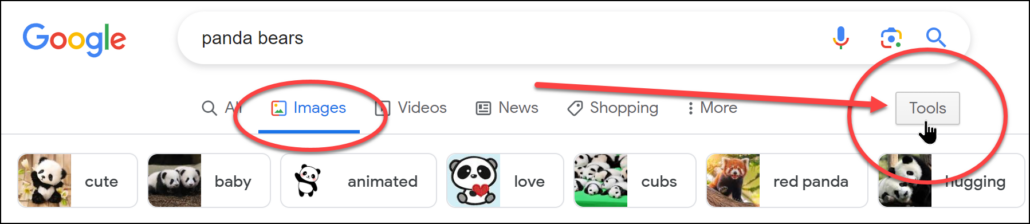
1. Open Google and click on Images, then type what you are looking for in the Search.
2. Click on Tools on the top right of the search:
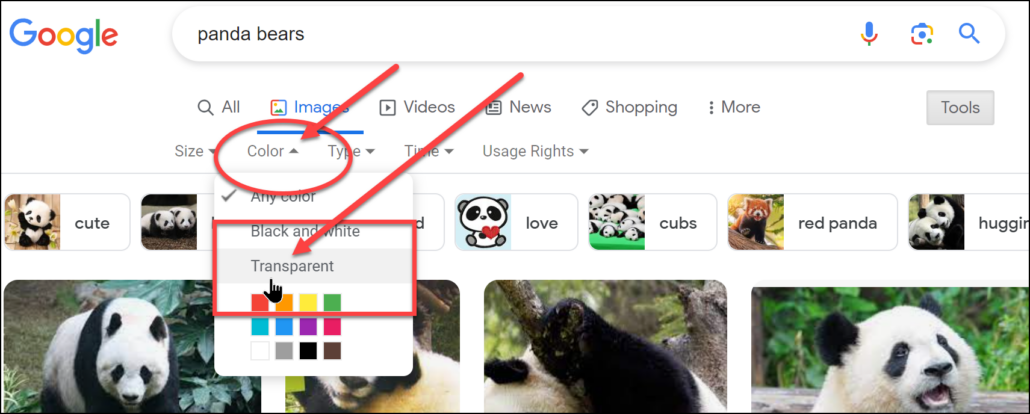
3. Click on Colour and select Transparent:
Now the pictures that they find should have a transparent background.
4. This is a super great opportunity to teach your students about Usage Rights as well. Have them click on Usage Rights and select Creative Common Licenses:
Pictures that students find under the Creative Commons License are free for public use. While we should always give the artist credit for the pictures, it is not always necessary if you are using these pictures.
Speaking of which, thanks to Richard Byrne for teaching me this tip:
https://learn71.ca/tech-tips/wp-content/uploads/sites/42/2026/07/Tech-Tips-Logo.png00adminhttps://learn71.ca/tech-tips/wp-content/uploads/sites/42/2026/07/Tech-Tips-Logo.pngadmin2026-07-09 09:45:232026-07-09 09:45:23An Easy Way to Find Images with Transparent Backgrounds