Last week I had the awesome opportunity to listen to two fabulous Coquitlam School District teachers take us through the Minecraft world they designed with Microsoft, and of course, I couldn’t wait to share it with you! In “A Pacific Northwest Coastal Experience” students travel back in time to visit a kʷikʷəƛəm village. Here they meet the Elders in the Big House and learn to harvest cedar planks, salmon, salmonberries and camas bulbs. Visitors get to go and try all these tasks out and learn more about the Indigenous ways of knowing and being. It is truly amazing to be in Minecraft walking the woods that we know with the animals that we see every day! It is a fabulous world to explore and I recommend taking your classes through it. There is also an easy to follow teacher guide with great lessons for you to follow on your journey with lesson extensions. If you would like a hand with these lessons please let me know-I love teaching with Minecraft and am happy to help out!
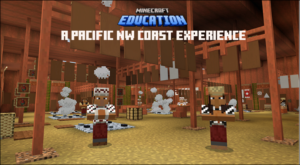
Click here or on the picture to get the Educator Guide
If you liked this one, you might also love the Manito Ahbee Aki World designed by the Indigenous people of Manitoba and Microsoft:
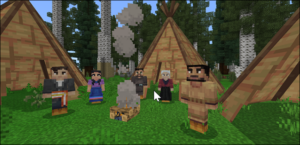
Click here or on the picture to go to the Manito Ahbee Aki instructions on Minecraft Education.
Just a reminder that if you have any problems with your computer, printer, laptop or other techie equipment, you can email ITHelpdesk@sd71.bc.ca or put the ticket in yourself which is much faster: open this link in your browser- https://ithelpdesk.sd71.bc.ca/ login using your district email address and password, then simply fill out the request form as detailed as you can.
I hope everyone had a fabulous long weekend. Today I am happy to share a site I was introduced to a few weeks ago (thanks Josh for today’s tip 😊). This site is designed to help teachers figure out if “fair dealing” permits classroom use of print materials, works of art, or audiovisual materials without first getting copyright permission. I am also excited to remind you that the Educators of the Galaxy first dinner series workshop, Guardians of the Graphic: A Canva Course, is coming up in a couple of weeks! The swag was delivered today (hint: it was designed in Canva) and we can’t wait to share! The deadline is October 19th for the first session. Read on for more information about the Fair Dealing Decision Tool and how to sign up for the free dinner series.
Fair Dealing Decision Tool:
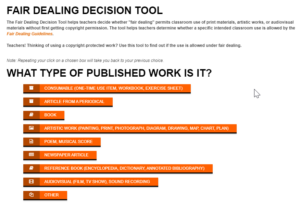
This amazing tool is super helpful when you are trying to decide whether it is ok to use a picture or part of book when designing lessons for our students (it also helps me figure out what is ok to use when posting online).
Click here or on the picture below to go to the site. When you get there click on the categories or answers that fit the piece of work you would like to use. It is super easy!