

Copy Text from Any Image with Snipping Tool! + Outlook Exchange on Mobile Devices

We just learned something new today and I had to share! Did you know the Windows 11 Snipping Tool can do more than just screenshots; it can pull text right out of an image or screenshot? This is a handy time-saver when you find text in an image, PDF, presentation, or website that you don’t want to retype. Read on to learn more about how to use this awesome tool.
Quickest way to open the Snipping Tool:
Press Windows + Shift + S on your keyboard. Your screen will dim slightly, and you can click and drag over exactly what you want to capture.
 You can also find the Snipping Tool by clicking on the Windows icon on the bottom left of your screen and typing Snipping Tool.
Once you’ve taken your screenshot, click the Snipping Tool notification that pops up on your screen to open it. Select the Scan Text icon and Windows will recognize the text in the image. From there, you can select what you need or choose Copy all text, then paste it into Word, Outlook, Teams, or wherever you need it.
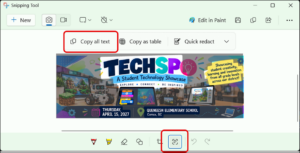
Try it: Take a screenshot of some text you would normally have to type out and let Snipping Tool do the typing for you!
Bonus: You can also quickly redact sensitive information, such as email addresses or phone numbers, before you share a screenshot.
🤫Did you notice the picture I was working on? Check your email on Thursday for more information about a possible Comox Valley School District Techspo in April!
Having Trouble Getting Work Email on Your Phone

If you use an older personal phone to access your work email, you may find that your device can no longer connect to your district Microsoft 365 account. Microsoft has updated the security requirements for mobile devices connecting to Exchange Online. If your work email stops syncing in Apple Mail or your usual Android mail app, try updating your phone first.
If your device can no longer be updated, you may need to use the Microsoft Office app to access your work email and calendar on your mobile device.
If you have a Teach Tip to share or you would like help with technology, please email us:
 Kara Dawson (she/her/hers)
District Information Technology Support Teacher

 Jane Rondow (she/her/hers)
SD 71 District Inclusion Teacher (Assistive Technology)

