
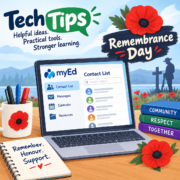
Need to know how to create a contact list for Outlook from your MyEd classlist – pretty simple with the steps explained in the video included.
Remembrance Day is just around the corner. Explore some of the K-12 Canadian resources below for classroom use.
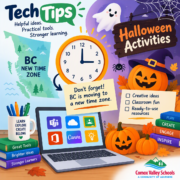
No more daylight saving time in BC . . . What does that look like in our calendars, and how do we make changes if needed?
Halloween time once again. Do you have activities ready to go? If not, fear, there is a fresh batch of Halloween activities below.
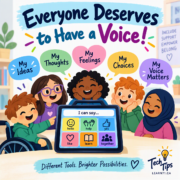
Happy AAC (Augmentative and Alternative Communication) Awareness Month!
AAC helps people communicate when speaking difficult or different.
It can be pictures, signs, a communication book, or a device that talks (TALKER).
Thanks to Krista Manson (AAC Speech Language Pathologist in SD71) for co creating this post.
Just a reminder, this Friday is our Provincial Pro D day with soooo many options available. Check out below for what’s available locally as well as the various PSAs.

Digital Citizenship Week is October 19–23! It’s a great opportunity to help our students think about how they can be safe, responsible and thoughtful digital citizens, but it’s also a good reminder for all of us to take a look at our own digital habits. From protecting passwords and recognizing scams to thinking carefully about what we share online and how we use AI, we all have a role to play in keeping our digital world safer. Read on for some great resources and easy ideas you can use with your students, along with a few digital safety reminders for yourself!

It’s hard to believe we’re already in October! With a later start to the school year and a Pro D Day in the middle of September, the month seemed to pass in the blink of an eye. Below are a few updates and reminders that would typically have been shared during the first month of school.

We just learned something new today and I had to share! Did you know the Windows 11 Snipping Tool can do more than just screenshots; it can pull text right out of an image or screenshot? This is a handy time-saver when you find text in an image, PDF, presentation, or website that you don’t want to retype. Read on to learn more about how to use this awesome tool.

On October 1st grade 4 students will be required to change their password when they log in to their school district account. We do this to get them away from using the formula we use to generate passwords – this is very easy for other students to figure out and leaves us with cybersecurity problems 😟 This is a great opportunity to help students develop good digital literacy habits by learning how to create strong passwords and keep their personal information safe.
Welcome back! We hope you had a wonderful summer and that your school year is off to a great start. Shannon, Jane and I are looking forward to another fabulous year of helping you with technology, sharing new ideas, and bringing you helpful shortcuts and resources through our weekly Tuesday Tech Tips.

As we head into the final stretch of the school year, energy is low, and to-do lists are long. The good news is you don’t need to spend all day on your computer to get yourself set up digitally for September. Follow each step below and set yourself up for a smoother school start-up.
10 minutes is all it will take 😆😆😆😆

If your computer currently has 17 different windows open and you’re playing a game of “Where did I put that document?”, this tip is for you (yes, that’s me too). I just discovered this icon on my computer and I had to share!
Windows 11 includes a hidden tool called Virtual Desktops, that lets you create separate workspaces for different tasks. Think of it as having multiple desks in your office: one for email, one for planning, and one for meetings ( and one for working on report cards that you can keep hidden in the background).