
Work Smarter with PDFs, Fast App Access & Healthier Tech Habit Challenge
Interacting with PDFs
One of the most frequently asked question we get is how can students interact with PDFs that are provided to them by the teacher. With the right tools, students can listen, highlight, write on them, annotate on them and even use dictate tools for speech to text.
Our district supports two tools:
- OrbitNote (browser extension)
- Microsoft Edge (built-in)
ORBITNOTE: 👉 OrbitNote is designed specifically to make PDFs accessible, interactive, and student-friendly.
With OrbitNote students can:
- 🔊 Listen to text (it reads aloud and highlights words)
- ✏️ Highlight and add notes
- 🖊️ Draw, write or type on the page
- 🎤 Leave voice comments
- 🌍 Translate and define words
- 🧾 Collect Vocab / Highlighted Lists
- 💻 Convert Non-accessible PDFs using OCR function
For more information and how to access OrbitNote use the link below:
OrbitNote for SD71
MICROSOFT EDGE: 👉 Microsoft Edge is a browser that already includes powerful PDF tools—no extra installation needed.
With Edge, students can:
- 🖱️Right click any PDF and “Open with” > Edge
- 🔊 Read aloud (listen to the text)
- ✏️ Highlight important parts
- 🖊️ Draw, write or type on the page
- 📄 Fill out worksheets and save them
For more information on using Edge to interact with PDFs use the link below:
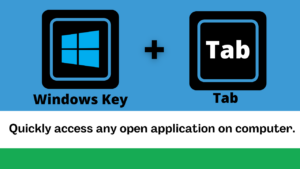
This will open a new window displaying all of your open apps. Clicking on the app will open it in the active screen.
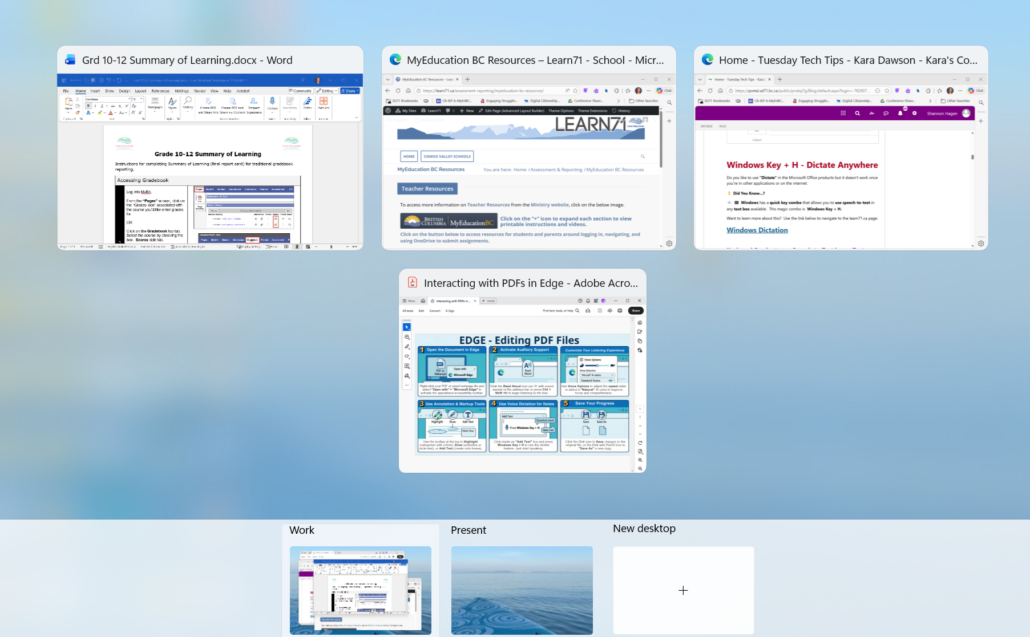
This is perfect when you are presenting and would like to demo an app in another window. You don’t have to minimize or close the current app to access the other.