
Welcome Windows 11 and Study and Learn
If your work computer looks a little different lately, it has probably been updated to Windows 11. This brings a fresh look and a few helpful new features (but yes, the first thing I did was move the Task Bar at the bottom back to the left). Another new update-we have the opportunity to test Microsoft Copilot’s “Study & Learn” for students 13+, designed to support student understanding and practice in new ways. Here’s a quick overview to help you get comfortable with what’s new and what’s coming next… Oh, and if you are interested in bringing your class to see this year’s Code Quest Arcade at Lake Trail on May 13th let me know 😊
Here are some of the Windows 11 Changes:
📍 Start Menu is in the Center
Your Start button and apps may now be centered on the taskbar instead of the left.
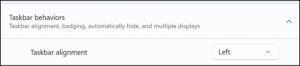
👉 Want it back on the left like me?
Right-click the taskbar → click on Taskbar settings → then bar Behaviors →Taskbar alignment → Left
Easier Window Snapping
- Hover over the maximize button on any window
- Choose a layout (side‑by‑side, grid, etc.)
- Click where you want the window to snap

Great for working with email + documents at the same time!
File Explorer Has a New Look
Your files are all still there—just with updated visuals.
- New icons
- Simplified top menu
- Right-click menu is shorter
Click “Show more options” for the full version