
Printing from District iPads
Exciting news . . . . printing can now be done from district iPads at school. Each school is assigned one printer for the iPads to print to (usually the library printer). Printing can be done from any app on the iPad although the process may be different for each one. Thank you Shannon for writing this tech tip and Jane, Shannon, John and Shaun for all of their work making this happen!
Printing from an iPad at School
Below is the link to the webpage that houses the set of instructions, both printed and in video form. Click on the image to access it. The video demonstrates how to print from a variety of apps on the iPad.
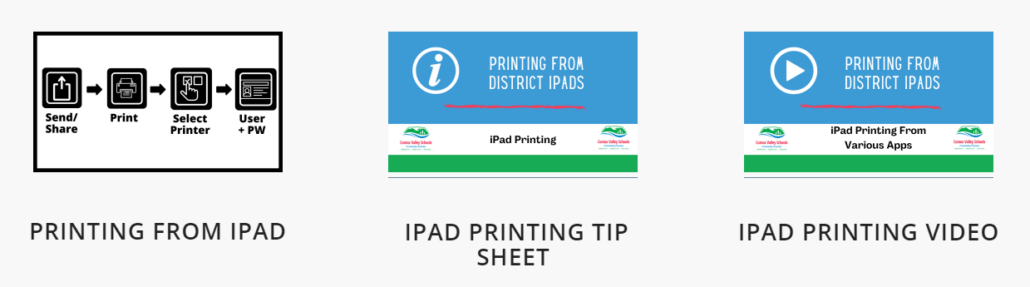
The Printing Process:
1. Open app to print from.
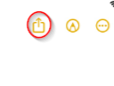
2. Click on the Share icon.
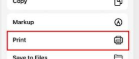
3. Select the Print option.
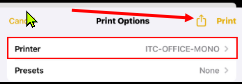
4. Select the printer (only one option listed).

5. Print.
6. Sign in using the SD71 username and login (same as for logging into the computers). OK.
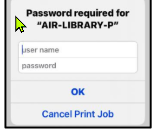
(Note: the process is slightly different for the Office products (Word, PowerPoint). The instructions for this are located at 1:25 in the video.)
The Inclusive Ed iPads (#35s) have all the printers listed. The specific school printer will need to be chosen to print at that location.