
Converting a PDF into an Excel Document
Hope everyone had a fun and relaxing Spring Break. Have you ever had a PDF that consisted of a table with a list that you wanted to be able to edit? If it was a Word document, you could open it in Word, and it would convert it. Unfortunately, it doesn’t work that way in Excel. However, you can insert a pdf once you’re inside Excel, which will then convert the contents into a table.
This would be useful if you had a list of contacts or a schedule that was in a pdf format, but you wanted to be able to edit it.
Follow the directions below to do this:
1. Open Excel
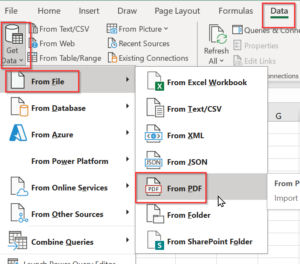
2. Go to “Data” top tab -> “Get Data” from the ribbon -> From File -> From PDF
3. Locate the PDF from your computer -> Import.
4. Select “Table” -> “Load” (NOT transform data).
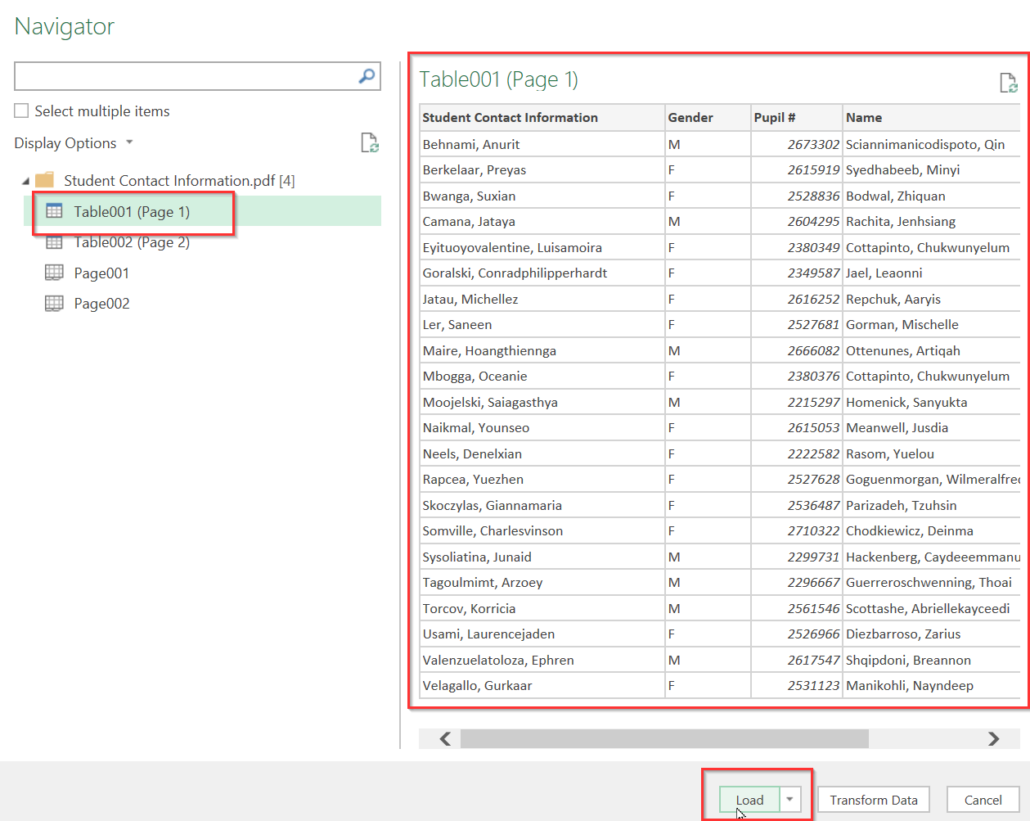
If there are two tables in the pdf (as in the image above), this process will need to be repeated. The second table will be added as a separate spreadsheet and can be accessed by clicking on the tab at the bottom of the excel document.
If you would like all the data in one spreadsheet (one table) just copy and paste the data from one spreadsheet to the other.

The data will be imported AND automatically converted to a table. This will allow you to use the drop-down arrows at the top of each column to manipulate your data easily.
