
 Turn Cluttered Screen Chaos into Organized Calm with Windows Magic
If your computer currently has 17 different windows open and you’re playing a game of “Where did I put that document?”, this tip is for you (yes, that’s me too). I just discovered this icon on my computer and I had to share!
Windows 11 includes a hidden tool called Virtual Desktops, that lets you create separate workspaces for different tasks. Think of it as having multiple desks in your office: one for email, one for planning, and one for meetings ( and one for working on report cards that you can keep hidden in the background).
How to Create a Virtual Desktop
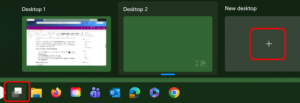
- Click the Task View button on your taskbar (the icon beside Search ), or press Windows + Tab.
- Click + New Desktop at the bottom of the screen.
- Open different apps and windows on each desktop.
- Switch between desktops by pressing Windows + Ctrl + Left Arrow or Windows + Ctrl + Right Arrow or click on the Task View button again and select the Desktop you would like to work in.
Why You’ll Love It
Instead of minimizing and reopening windows all day, you simply switch desktops.
✨ Once you start using Virtual Desktops, you’ll wonder how you ever managed with just one. Just be careful that you don’t think that you lost what you were working on and start again (yes-I did that one).
If you have any trouble with this, you have a tech tip that you would like to share, or you would like support with technology, please email us.

