
AI Guidelines and One Handed Keyboard on Your Phone
I can’t believe that tomorrow is May 1st, it seems like time is flying by! Speaking of being in a hurry-I bet you have had to text someone with one hand while your other arm is full of work or groceries… Did you know that you can slide the keyboard on your phone to the left or the right to make it easier to text with one hand? Read on for instructions for this. I am also excited to share that our Ministry of Education has produced some guidelines for using AI. in schools. We have posted them all on Learn71 here. Click here to go our page with the Ministry of Education AI Guidelines
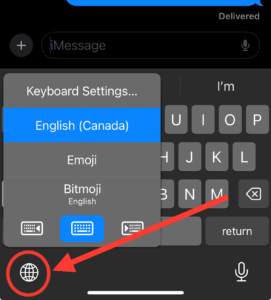
One Handed Typing Mode on an iPhone:
1. Use an app that makes the keyboard pop up.
2. Press and hold your finger down on the globe at the bottom left of your screen
3. Choose which side of the screen you would like the keyboard to slide over to.
One Handed Typing on Android Phone:
With an android phone you can shrink the screen and have it go to bottom left or right to make it easier to navigate with one hand. Click here for instructions for one handed mode for android phones.