
Earth Day Ideas and Closed Captions for PowerPoint
I keep getting all these great Earth Day ideas sent to me and instead of letting them live in my email collection, I would like to share them with you! Common Sense Education has collected some great sites with videos and activities and of course, I can’t help but share the awesome Minecraft worlds that are designed to help students visualize problems our Earth is facing and to design solutions. Hopefully, some of these ideas will inspire you for Earth Day on the 22nd.
Jane Rondow and Shannon Hagen have also added a great page of instructions for using PowerPoint in your classroom with Closed Captions to help students catch all your important words.
Earth Day Ideas:
- From Common Sense:
- Earth Day and the Environment: Check out this article for lessons, texts, activities, and videos for all grades about climate change and the environment, including resources like the Climate Mental Health Network.
-
Make an impact this Earth Day with Minecraft Education It’s almost Earth Day! Show your students they have the power to change the world with Minecraft lesson collections focused on creating a more sustainable planet: 
(NEW) Planet Earth III: Explore the way animals’ lives are intertwined by playing as predator and prey, parent and offspring, friend and ally. (Also check out Planet Earth I and II-they are beautiful! Sustainability City: Investigate real-life sustainable processes—sustainable home components, managing waste, generating electricity, responsible forestry, and more. Climate Futures: Aligned to the UN Sustainable Development Goals, this lesson educates youth about climate change and how they can have a positive impact. Explore resources >
PowerPoint Captioning
PowerPoint has built-in tools to increase the accessibility of presentations using their built-in captioning and translation functions, which can easily be set as default functions.
The Caption function allows you to have captions in one language. Presenting live will enable participants to choose the language of captions.
Follow the steps below to enable captioning for your next presentation:
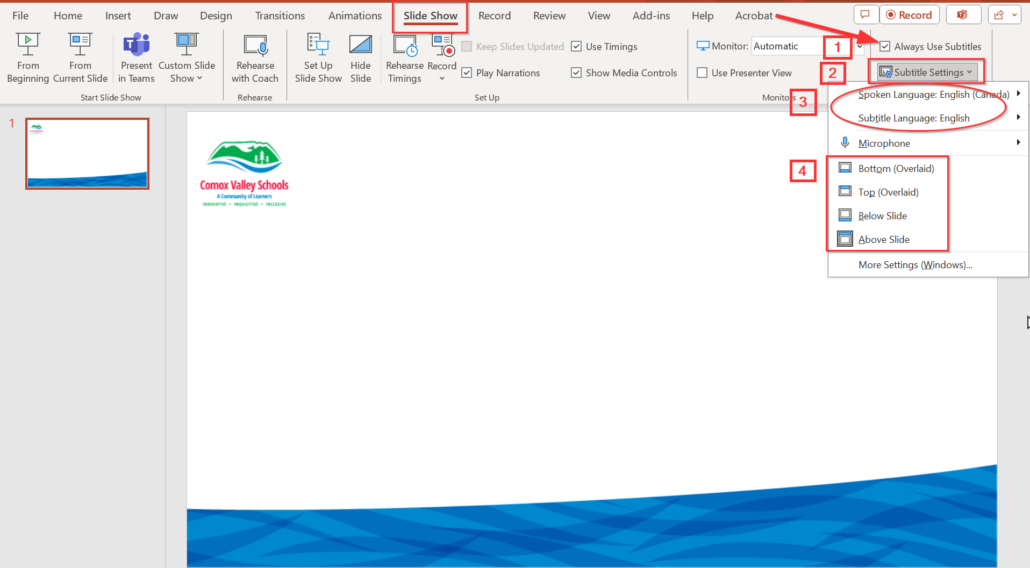
1. Click on the “Slide Show” tab in the PowerPoint ribbon.
2. Check the box “Always Use Subtitles”. This is found in the “Captions & Subtitles” section.
3. Choose the language both for what is spoken AND what is displayed. ***It is English by default.
4. Determine where you’d like the captions to be displayed.
Note: If you are choosing “Overlaid,” be sure the background of your slides offers enough colour contrast to the color of the captions.
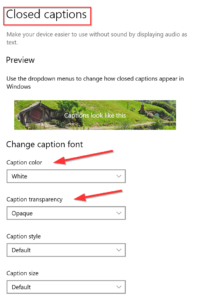
You can use the “More Settings” link to format captions even further (font colour, font type, background transparency, etc.)…
***NOTE: The “Present Live” option can be used if you would like to have the captions translated into different languages for the audience.
Click on the link below to learn more about Closed Captioning, Presenting “Live” and how to best deliver instructional resources to our hard of hearing students.