Universal Design for Learning (UDL)
Designing for Every Learner from the Start
 UDL is a framework to improve and optimize teaching and learning for all people based on scientific insights into how humans learn. It’s moving from “fixing the student” to “fixing the environment.”
The goal of UDL is learner agency that is purposeful & reflective, resourceful & authentic, strategic & action-oriented – anticipate & remove barriers.
There are three Guiding Principles:
1. Engagement
2. Representation
3. Action and Expression
To learn more and dive deeper into UDL, visit the CAST website by clicking on the image to the left.
THE GUIDING PRINCIPLES
The Guiding Principles provide the framework for the implementation of UDL. Each principle has a set of “guiding questions” that will help users ensure they are abiding by the principle.
Click on the “+” icon to expand the content and learn more about how to utilize each principle when designing learning resources OR on the image itself to learn more about the specific principle.
Engagment
The “Why” of Learning

Guiding Questions
- In what ways do I give students choice and autonomy?
- In what ways do I make learning relevant to students?
- Am I providing timely feedback?
- In what ways is my classroom accepting and supportive of ALL students? (Encouraging community and collaboration)
Strategies
Incorporate student interests and choices:
- Allow students to select topics for projects or choose from a menu of activities.
Foster collaboration and community:
- Use group projects, peer reviews, and discussion forums to build a sense of belonging.
Provide timely and meaningful feedback:
- Create student focused checklists and timely teacher feedback (formative vs summative).
Scaffold learning:
- Activate prior knowledge / Help students make relevant connections
Support Self Regulation & Goal Setting:
- Encourage reflection and self-assessment to help students understand their learning processes and set personal goals
Applications
Student Choice: Choice Boards
- Microsoft Word, Book Creator, PowerPoint Hyper Linked, Lumio, Canva, Brightspace w/ Hotspots
Student Interest: Surveys; vision boards, all about me
- Surveys: Microsoft Forms; Vision Boards: Canva; All About Me: Canva, Book Creator
Learning Relevant to Students: Connect to Real World
- Mentors; Buddies; Simulations (PHET); Project Based Learning; Accessing Prior Knowledge (KWL) ⟶ Book Creator & Canva
Feedback: Co-created Rubrics; Checklists; Formative Assessment; Peer Feedback; self Reflection
- Copilot (Prompts); Canva; Book Creator; Excel; Brightspace; Blogs; Microsoft Reflect
Collaboration; Partner & Group Work
- Share features in Microsoft Office; Teams; Canva; Book Creator; Brightspace
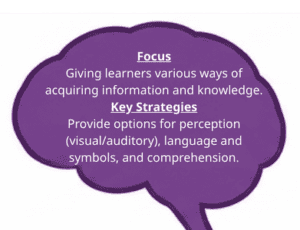
Representation
The “What” of Learning
Guiding Questions
- How have I varied my formats? (i.e. considered options for how I present texts, pictures, and charts)
- Have I included multi-modal content? (text, audio, video)
- What options do I provide for students who need support engaging with printed texts and/or with auditory learning.
Strategies
Use Different Formats:
- Make resources available that can be easily adjusted according to student need.
MultiModal:
- Present information incorporating a variety of media. Use closed captioning when presenting videos or auditory lessons.
Highlight Critical Features:
- Use colour coding, bold text, format headings, icons, bullets and other visual aids to help emphasize key concepts.
Applications
- Include text; images (with ALT text), icons, graphic organizers, PHET simulations, CANVA embed, infographics, videos with Closed Captioning, screen recordings, audio recordings, picture dictionaries.
Multiple Formats:
- Use ARC BC or Focused Ed for digital texts; house digital resources in SpacesEDU, Teams or Brigthspace for easy access and interactivity by students. Voice Dream Reader, OrbitNote, Claro PDF, Immersive Reader, Dictate, Edge Annotation tools, screen readers. Use the OCR function on the photocopier to create accessible pdfs (just scanning them will not provide this function).
Highlight Key Features:
- Use the text tools to alter key features (bold; highlight; headings); add icons to represent key concepts; use graphic organizers, vocab lists (Read&Write), charts to make key terms easily visual; summarize large bodies of text (AI).
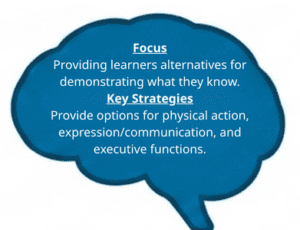
Action & Expression
The “How” of Learning
Guiding Questions
- Have I found ways to provide flexibility with timing and pacing?
- Have I considered methods aside from paper-and-pencil tasks for students to show what they know?
- Am I providing students access to assistive technology (AT)?
- Have I used scaffold strategies and supports where needed?
Strategies
Availability of Different Tools:
- Provide access to the assistive technology tools as well as the “show what you know” apps.
Offer Choice for Demonstrating Knowledge:
- Allow students to choose from various project formats as well as assessment formats.
Self Assessment and Reflection:
- Provide opportunities for students to peer and self evaluate their own work by creating rubrics and checklists. Allow time for reflection throughout the process.
Scaffold Strategies and Supports:
- Offer feedback that is specific, actionable and encouraging.
- Provide Executive Functioning supports to help with scheduling and task breakdown.
Applications
- Immersive Reader; Dictate; Edge Read Aloud; Edge Annotation; Windows H (dictation); Windows Text Prediction, OrbitNote, Read & Write, ClaroPDF
Show What You Know Apps
- Canva, Book Creator, Microsoft O365, ClipChamp, Clips, Podcasts, Screen Capture
Executive Functioning
- Canva, Book Creator: Checklists, Graphic Organizers; Goblin Tools: Task breakdown; Office “To Do”: checklist; Checklist in Brighspace; Release Conditions in Brightspace; “Check-ins” with Microsoft Forms;
Feedback / Reflections:
- Rubric maker in AI; Book Creator: self reflection templates; Canva: checklists, rubrics; Teams: AI Rubric creations; Microsoft Reflect; Assignment Feedback Loop
DR. KATIE NOVAK
Katie Novak is an internationally renowned educator who is considered a leading expert in Universal Design for Learning (UDL). She translates the UDL framework into practical, inclusive classroom strategies that empower all students to succeed.
Watch the video and access the links below to explore some of her simple explanations around UDL.
COMMON BARRIERS
Before choosing methods or materials, look at the learning space. This includes the physical setup and the social‑emotional climate. Small changes here can make a big difference, so consider these factors first and identify any barriers in the environment.
Some considerations to help you address common barriers in your learning environment:
Once these are considered and addressed, lessons and activities can be created. Use the framework provided in the UDL Guiding Principles above.
Use the information provided below to help guide you in the actual creation of the resourses.
DESIGNING FOR DIGITAL INCLUSION
When creating learning resources, there are some specific things to keep in mind to ensure they are inclusive and accessible. Use the ARC-BC how-to-guides below to help with this process. Click on each image to access them.
Accessibility Checking
Most content creation tools for educators include accessibility checking features. These tools help educators to identify and fix any accessibility challenges in learning materials they create.
 Alternative Text
Provides a text-based alternative to visual content. Alternative text is essential for informative images that contribute to the learner’s understanding and enjoyment of digital format learning materials.

Colour and Contrast
Adequate contrast between text and background is essential for easy visual access to learning content. Educators can adjust font and colour schemes to promote access and increase readability.

Headings
Headings provide students with more easily navigable learning materials as well as access to the organization of topics and sub-topics as determined by the content creator.

Meaningful Link Text
Adding hyperlinks to descriptive text communicates the meaning and/or purpose of the link to the learner while ensuring that documents are not cluttered by lengthy URLs.

Reading Order
The order in which students using access technology will interact with elements. An intentional reading order ensures that students interact with content in a logical, intentional progression
LOW TECH | NO TECH UDL
UDL isn’t always about engaging with technology. Below are some Low Tech | No Tech UDL solutions for the classroom.
Click on the link below the image to download a PDF copy.
UDL DESIGN CYCLE
The UDL cycle is a proactive, repeat‑as‑you‑go approach to designing lessons. It helps teachers keep improving their plans so all learners are supported, instead of using a “one‑size‑fits‑all” model.
Click on the link below the image to download a PDF copy.
-
Establish Clear Goals:
- Define learning goals that are distinct from the means of achieving them.
-
Analyze Barriers & Learner Variability:
- Anticipate obstacles within the environment, methods, or materials that might hinder student success.
-
Design Instruction (Proactive Planning):
- Apply the three core UDL principles to address identified barriers. Create universal lessons and activities right from the start.
-
Teach and Evaluate:
- Implement the lesson and use formative assessments to monitor progress.
-
Reflect and Redesign:
- Use feedback and evaluation data to make improvements for the next iteration.
RESOURCES
Use the “+” icon to expand each tab to explore additional links and resources. The Padlet tab contains a large variety of activities that can be implemented into the classroom right away.
Resources & Links
- CAST – UDL
- All you need to know about Universal Design for Learning.
- UDL “Look Fors”
- What strong UDL practice looks like in action.
- Katie Novak UDL Resources
- Practical Tools to Help You Implement Universal Design for Learning and Inclusive Practices
- UDL Flow Chart
- Use this flow chart to help create inclusive learning resources.
- UDL Implementation Rubric
- Check how well you are implementing UDL in your learning environment.
- UDL Padlet
- Padlet with a collection of UDL-specific project examples.
- ARC BC Text Books
- Digital textbooks for teachers to download for student use in the classroom.
- ARC BC – Universal Design for Accessibility
- Six things to keep in mind when creating content with UDL.
- Accessible Colour Palette
- Website that contains colour palettes specifically designed with accessibility in mind.
- Backward Design Templates for BC
- Plan your lesson using the Backwards design template.
- Understood – UDL Resources
- UDL website to help teachers implement it into their classrooms
- SWIFT Five Steps To Get Started Using UDL
- Planning and teaching using universal design in five easy steps
- Shelley Moore UDL Checklists
- Guiding principle checklists to help teachers implement UDL in an organized manner.
- Generative Prompts for UDL
- Prompts created to copy and paste into a chat box for quick and easy exploration into what the three guiding principles look like in action