
OneDrive
 OneDrive is our district’s online cloud storage solution that allows you to create, store, sync, and share your files across multiple devices and access them anywhere as long as you have internet access.
Learn more about OneDrive for the Web or OneDrive for Windows by clicking on one of the images below to watch the video or the Quick Start Guide to see the visual.
THEN Click on the “+” icon to expand the content and learn more about how to complete each task in OneDrive.
Access / Logging In
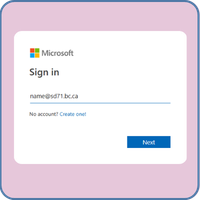
Access OneDrive a number of different ways. Use your email & password to login.
Use MyApps in Edge
Open the Edge browser using the icon at the bottom of the taskbar.
Click on the “My Apps” icon located in the quick links section of the webpage.

Click on the “OneDrive” icon (scroll down if you don’t see it right away).
Use App Launcher in Edge
Open the Edge browser using the icon at the bottom of the taskbar.
Click on the “Apps Launcher” icon located at the top-left of the screen. It looks a bit like a waffle.

Click on the “OneDrive” icon located here. If you don’t see it right away, click on “More apps . . .”
Use URL from Browser
- Open the Edge browser using the icon at the bottom of the taskbar.
- Type the following in the URL bar (address bar): https://onedrive.live.com/login
Get Started
Learn the interface and navigational structure in OneDrive online with video and icons.
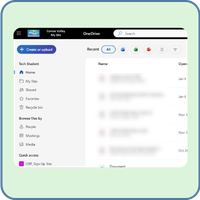
Interface of OneDrive Online
When logging in to OneDrive, you will be taken to the landing or home page. There are a number of links on the sidebar to help you navigate to where you’d like to be. There are also additional items on this page to help you with your OneDrive use.
Click on the image to enlarge it.
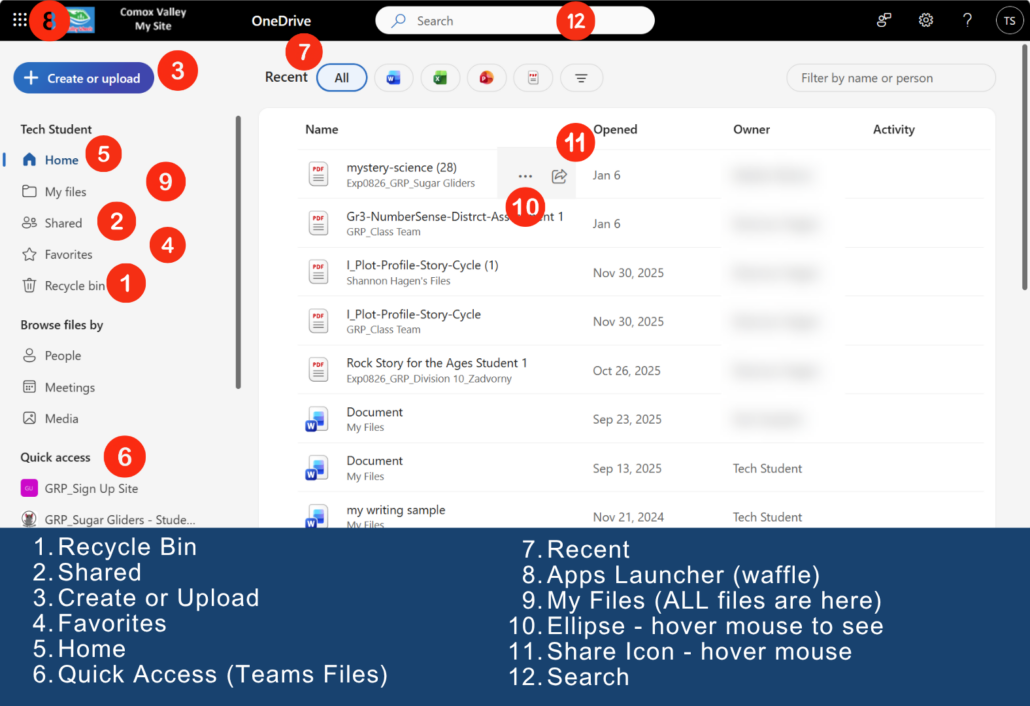
Navigate OneDrive Online
Watch the video below for a tour of what is found on the OneDrive landing page.
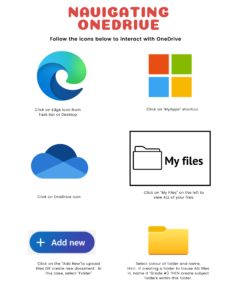
Navigate OneDrive w/ Icons
Use the handout below to help students learn how to navigate and use the OneDrive features using icons. These cards can be ordered from the printshop by visiting the Learn with Icons page on learn71
Click on the image for a downloadable copy of the handout.
File Management
Create folders and files within OneDrive. Add icons and colour code for easy access.
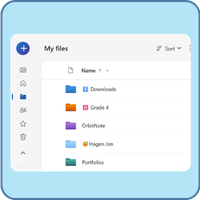
Create Files and Folders
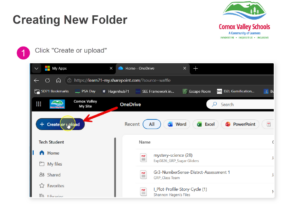
Folders and files can be created in the OneDrive interface by clicking on the blue “Create or upload” button.
Click on the image for a larger, file that can be downloaded.
Restore Deleted Files
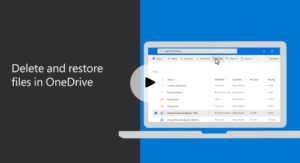
Did you delete a Folder or File just to realize you needed it? Don’t worry, click on the image below to open the video that demonstrates how to restore these folders and files from the online Recycle bin in OneDrive.
View Options
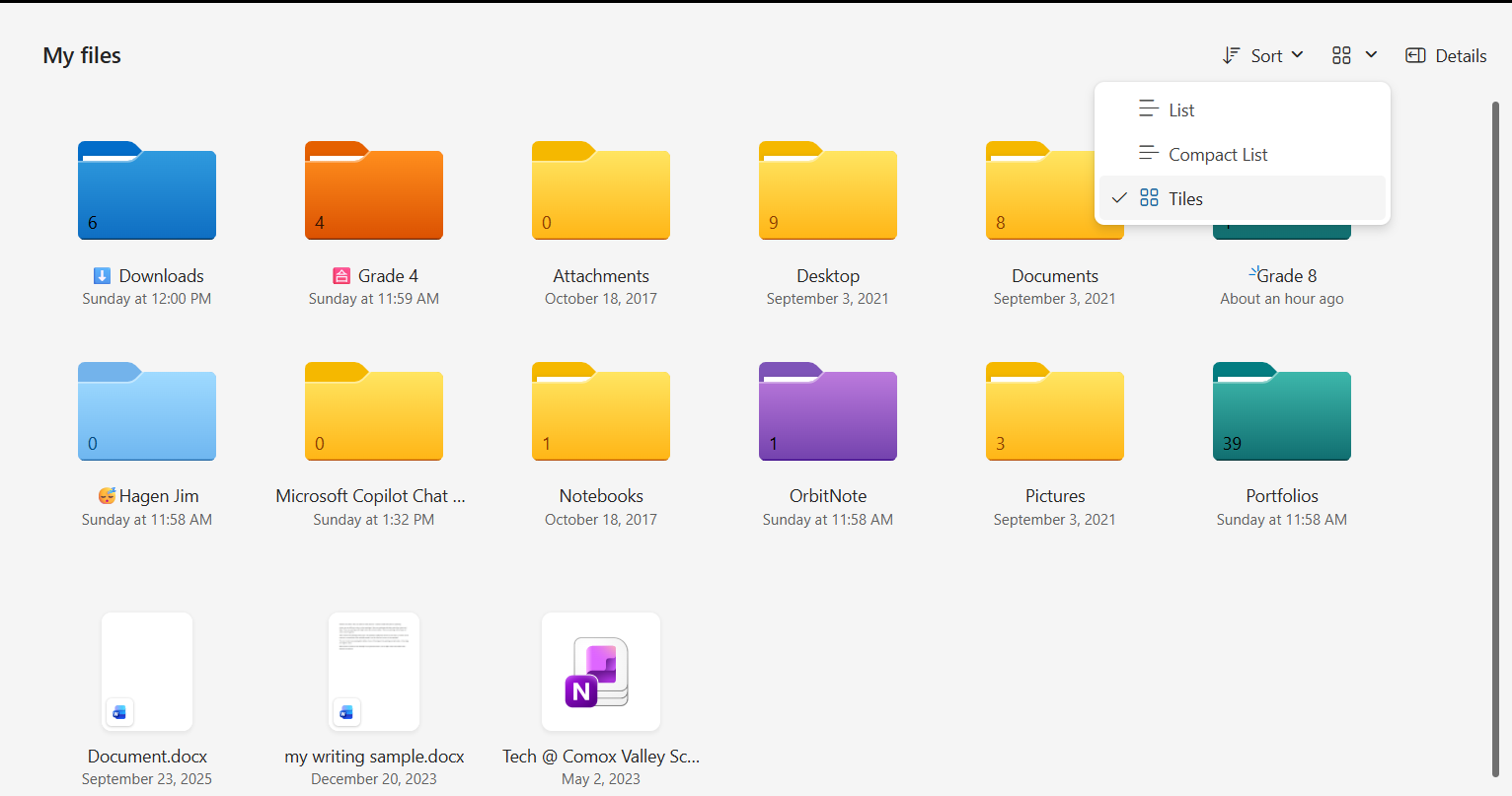
Available View Options
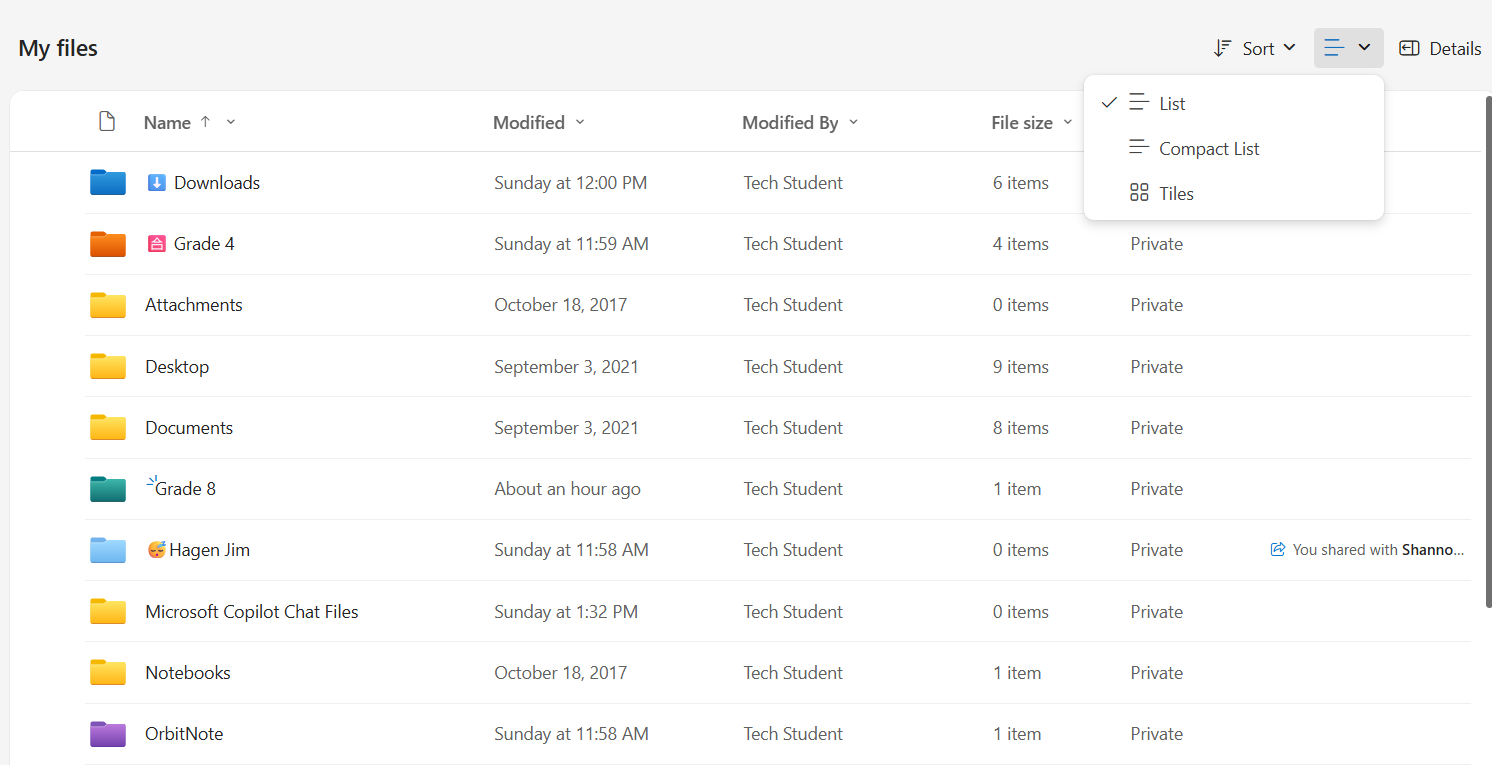
List: Displays your files and folders in a standard vertical row with detailed information like modification date and file size.
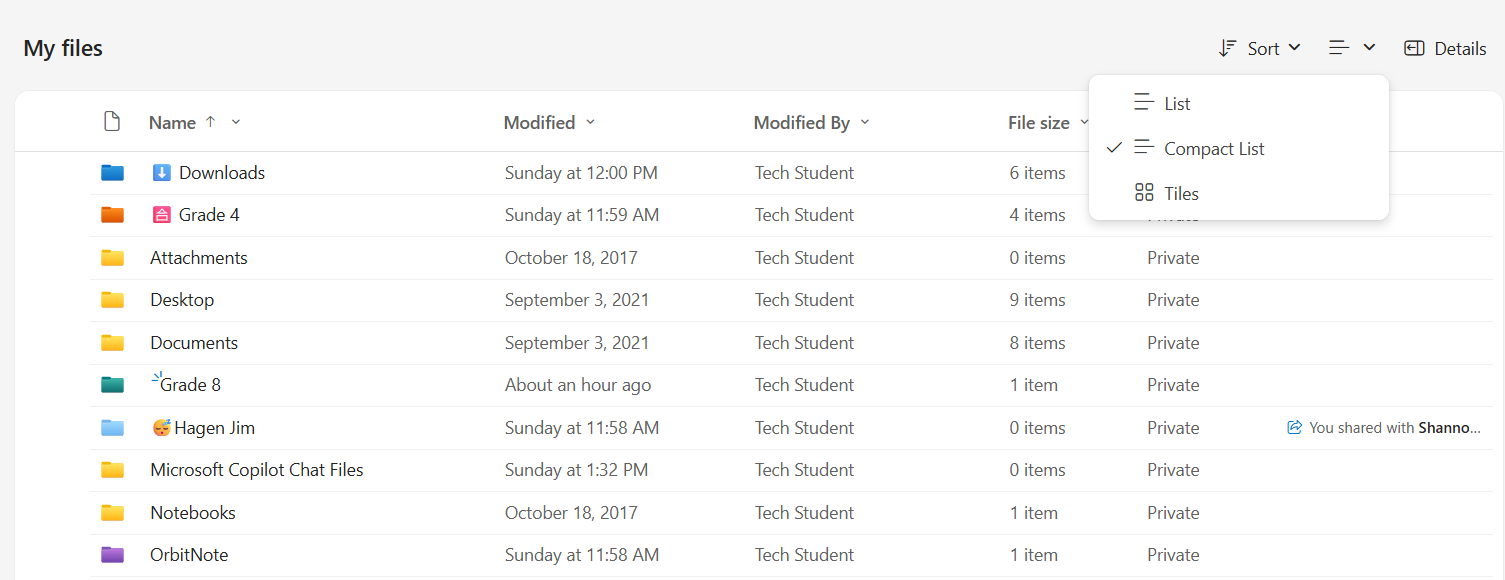
Compact list: Tightens the vertical spacing between rows so you can see more documents on your screen without scrolling.
Tiles: Shows larger image thumbnails, file previews, and folder icons with file names underneath.
Sorting Options
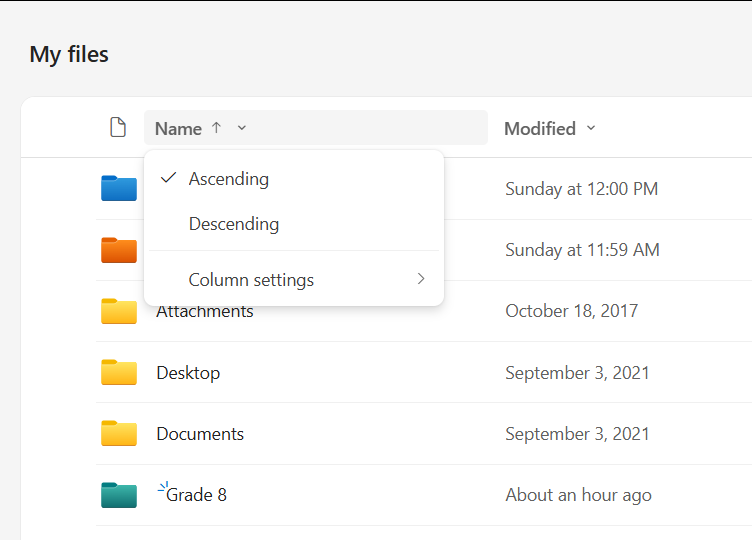
By clicking on the arrow at the top of each column, you can sort “Ascending” or “Descending”
Share and Collaborate
Learn how to share items within OneDrive for easy access and collaboration.

Create a Sharing Link
- Click on the “Share Icon” (hover the mouse over the file to make this visible).
- Type in the recipient (s) ‘ name(s) you’d like to share the file with.
- Use the drop-down arrow to select what type of access you’d like your recipient to have.
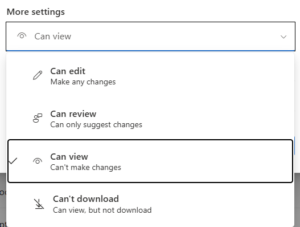
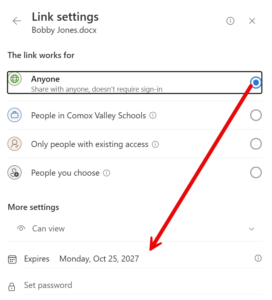
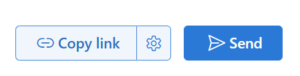
- Click on the “Settings Cog” beside the “Copy Link” to customize the sharing settings . . .
- Who has access (and expiration date if required)
- What type of access
- Create a Password
- Use the “Copy link” feature to create a clickable link to share with others. Paste it into an email or an LMS to access it.
OR
- Send it as an email so the recipient will receive an email with the link to access it.
Accessing Shared Items
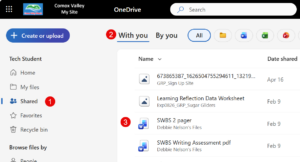
Files shared with you can be accessed using the link supplied in the email. However sometimes this is time consuming locating this email.
Another, easier way is to access it from the OneDrive folder online.
- Click on “Shared” link on left.
- Click on “Shared with me”.
- Click on file to open and edit it.
Collaboration
OneDrive enables students and teachers to create, share, review, and co-author content together from any device, in real time, avoiding the confusion of multiple versions of the same file.
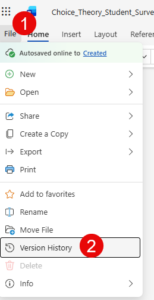
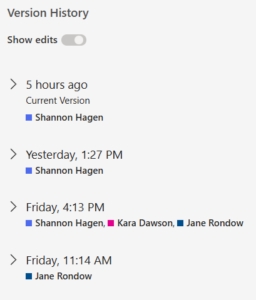
Version history can be accessed to view when the file was accessed, who made changes to the file, and what these changes are. Earlier versions of the file can even be restored if needed.
This is done by going to:
File -> Version History
Date, Authors and Content are listed here:
Resources
There are a number of features available in OneDrive that are useful for teachers and students.
Accessibility Features in OneDrive
♿Microsoft OneDrive offers various accessibility tools to ensure inclusivity and equal access for all users.
Click on the link below to view Microsoft’s webpage on accessibility tools and inclusion for OneDrive.
Accessibility Tools for OneDrive
To expand and learn more about each tool below, click on the “+” icon beside “Learn More”.

Immersive Reader
A built-in reading support feature in Microsoft 365 that reads text aloud and lets users customize how text is displayed.
–
ℹ️ Learn More
Text-to-Speech: Reads text aloud while highlighting each spoken word in real-time.
Text Customization: Changes font size, character spacing, column width, and page background colors to reduce eye strain.
Line Focus: Acts as a digital reading ruler, isolating one, three, or five lines at a time.
Grammar Tools: Breaks words down into individual syllables or highlights parts of speech (nouns, verbs, adjectives).
Translation & Dictionaries: Instantly translates text into multiple languages or provides a picture dictionary for visual definitions.

Dictate
A built-in speech-to-text feature in Microsoft 365 that allows you to type documents, emails, and notes using your voice.
–
ℹ️ Learn More
- Real-Time Speech-to-Text: Converts your spoken words into text instantly as you talk.
- Auto-Punctuation: Automatically detects your natural pauses and inserts periods, commas, and question marks.
- Voice Commands: Allows you to control formatting and navigation by speaking commands like “new paragraph”, “delete last word”.
- Multilingual Support: Supports dozens of spoken languages.

Read Aloud
A built-in text-to-speech feature in Microsoft 365 that reads documents, emails, and web pages aloud while highlighting words as they are read.
ℹ️ Learn More
Word Highlighting: Visually tracks the text by highlighting each word as it is spoken.
Natural-Sounding Voices: Uses advanced cloud-based AI to provide realistic human voices (male & female).
Speed & Voice Control: Allows you to speed up or slow down the reading pace.
Background Playback: In apps like Outlook, you can listen to your emails being read aloud while multitasking in other windows.
FAQs
➕ Use the “+” icon to expand each tab to explore answers to the Frequently Asked Questions.
What is OneDrive
OneDrive is SD71’s cloud storage solution within Microsoft 365. It allows you to save, access, organize, and share files from any device connected to the internet. Files stored in OneDrive are available at school, at home, and on mobile devices.
Learn More
What happens if I accidentally delete a file?
Deleted files are moved to the OneDrive Recycle Bin where they can usually be restored. If a file was deleted recently, you can recover it yourself without contacting IT.
Learn More:
Can I access my files when I don’t have internet?
Yes. You can make files available offline using the OneDrive desktop or mobile app. Changes made while offline will automatically sync the next time you connect to the internet.
Learn More:
How do I share a file with another student or teacher?
Select the file, choose Share, and enter the name or email address of the person you want to share with. You can decide whether they can view or edit the file. Shared files can be updated collaboratively in real time.
Can multiple people work on the same file at the same time?
Yes. OneDrive supports real-time collaboration in Word, Excel, PowerPoint, and other Microsoft 365 apps. Users can work together simultaneously and see changes as they happen.
Learn More:
What is the "Request Files" feature?
Request Files allows you to collect files from others without giving them access to your folder. People can upload files through a secure link, but they cannot view, edit, or download other submissions. This is useful for collecting assignments, forms, photos, or project work.
Learn More:
What accessibility features are available in OneDrive and Microsoft 365?
Students and staff can use accessibility supports such as:
- Immersive Reader
- Read Aloud
- Dictation (Speech-to-Text)
- Accessibility Checker
- Screen Reader compatibility
- High contrast and zoom tools
These tools help make learning more accessible and inclusive.
Learn More:
How can I find a file quickly?
Use the search box at the top of OneDrive to search by file name, keyword, or content. You can also use folders and file filters to locate documents more efficiently.
Learn More:
Can I upload files from my computer to OneDrive?
Yes. You can drag and drop files into OneDrive or use the Upload button. Once uploaded, files are available from any device where you sign in with your SD71 account.
Learn More:
What devices can I use with OneDrive?
OneDrive works on:
- Windows computers
- Mac computers
- iPads
- Android tablets and phones
- iPhones
Your files automatically sync across devices when connected to the internet.
Learn More:
What does the cloud icon next to my file mean?
A cloud icon typically means the file is stored online and not currently downloaded to your device. Opening the file downloads it when needed. You can choose Always keep on this device to make it permanently available offline.
Learn More:
Can I recover an earlier version of a document?
Yes. OneDrive automatically saves version history for Microsoft 365 files such as Word, Excel, and PowerPoint documents. This allows you to view previous versions and restore an earlier copy if changes were made accidentally or important information was removed. This feature is especially useful when collaborating with others.
Learn More:
How do I sync OneDrive to File Explorer?
The OneDrive desktop application allows your cloud files to appear directly within File Explorer on a Windows device. After signing in with your SD71 account, your files automatically sync between your computer and OneDrive. This allows you to work with files as if they were stored locally while still benefiting from cloud storage and backup. [support.mi…rosoft.com], [microsoft.com]
Learn More:
What is the difference between OneDrive and Teams files?
While both tools store files in Microsoft 365, they serve different purposes:
- OneDrive is your personal cloud storage space. Files belong to you unless you choose to share them.
- Teams files are typically stored for a group, class, department, or project team and are designed for collaborative work.
- Files shared through Teams are generally accessible to members of that Team, while files in OneDrive remain private until shared.
A good rule of thumb is: Use OneDrive for your personal work (“Me Space”) and Teams for shared group work (“We Space”). [learn71.ca], [support.mi…rosoft.com]
Learn More:
What should I do if OneDrive is not syncing?
If your files are not syncing properly:
- Check that you are connected to the internet.
- Confirm that you are signed into OneDrive with your SD71 account.
- Look for the OneDrive cloud icon in the taskbar and check for error messages.
- Restart the OneDrive application.
- Ensure you have sufficient storage space available.
- If the issue continues, contact your school’s IT support team.
Most syncing issues are related to connectivity, account sign-in, storage limits, or files that contain unsupported characters in their names.
Learn More:
Can I use OneDrive on my phone or tablet?
Yes. The OneDrive mobile app is available for iPhone, iPad, and Android devices. Once signed in with your SD71 account, you can view, edit, upload, scan, and share files from almost anywhere. Files can also be marked for offline access when internet connectivity is unavailable. [support.mi…rosoft.com], [microsoft.com]
Learn More:
What do the different OneDrive icons and symbols mean?
OneDrive uses icons to help you understand the status of your files:
- ☁️ Blue Cloud = File is online only.
- ✅ Green Checkmark = File is available offline.
- ✅ Solid Green Circle with Checkmark = File is always kept on your device.
- 🔄 Sync Arrows = File is currently syncing.
Understanding these icons can help you know whether a file is available without internet access and whether the latest changes have synced successfully.
Learn More:
Can I share files with parents, guardians, or people outside SD71?
Yes. The sharing permissions applied to the file or folder would have to be set to “Anonymous” with an expiration date automatically applied. You can provide “Edit”, “View”, “Review” and “Prevent Downloading” access for each item shared. Always follow district privacy guidelines and avoid sharing student information or confidential documents unless approved and appropriate permissions are in place.
Learn More:
What is AutoSave and why is it helpful?
AutoSave automatically saves your changes while you work on Microsoft 365 files stored in OneDrive. This reduces the risk of losing work due to unexpected computer shutdowns, browser crashes, or accidental closures. It also supports real-time collaboration by ensuring everyone sees the latest updates. If you have created your file in the Online environment, the Autosave will automatically apply to the file. If you’ve created your file from the Desktop version, you will have to “Save As” first before the document autosaves.
Learn More:
What is the best way to organize my OneDrive?
A strong organizational system makes it easier to find files and stay productive. Consider:
- Creating folders by subject, course, or project.
- Using consistent file names.
- Applying folder colours for visual organization.
- Archiving older files into yearly folders.
- Using the search box to quickly locate documents.
Good file organization can save time and help reduce lost work.
Learn More: